A laptop’s touchpad makes it simple to add mouse capability without the need for an additional device. The touchpad functions similarly to an external mouse whether it is locked or enabled. The touchpad is not functional when it is deactivated or locked, avoiding inadvertent movement of the mouse pointer while you are typing with your hand. The usage of an external mouse is necessary when disabled.
What to do first:
The touchpad on certain laptops may be instantly enabled and disabled by pressing a button located close to its top. With the help of the button, you may turn the touchpad on and off.
Fn keys for touchpads: On certain computers, the Fn key works with one of the F1–F12 function keys to activate and disable the touchpad. Pressing both of these shortcut keys at once turns the touchpad on and off.
How to disable the touchpad in Windows 8 and 10
Utilizing a keyboard and mouse
Type “touchpad” into the Windows key, then hit the Enter key.
You may also enter Settings by pressing Windows key + I, then choose Devices, then Touchpad.
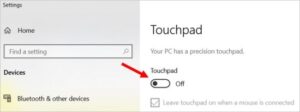
Click the Touchpad toggle and switch to the off position in the Touchpad Settings box.
A laptop’s touchpad makes it simple to add mouse capability without the need for an additional device. The touchpad functions similarly to an external mouse whether it is locked or enabled. The touchpad is not functional when it is deactivated or locked, avoiding inadvertent movement of the mouse pointer while you are typing with your hand. The usage of an external mouse is necessary when disabled.
What to do first:
The touchpad on certain laptops may be instantly enabled and disabled by pressing a button located close to its top. With the help of the button, you may turn the touchpad on and off.
Fn keys for touchpads: On certain computers, the Fn key works with one of the F1–F12 function keys to activate and disable the touchpad. Pressing both of these shortcut keys at once turns the touchpad on and off.
How to disable the touchpad in Windows 8 and 10
Utilizing a keyboard and mouse
Type “touchpad” into the Windows key, then hit the Enter key.
You may also enter Settings by pressing Windows key + I, then choose Devices, then Touchpad.
Click the Touchpad toggle and switch to the off position in the Touchpad Settings box.
With only a keyboard
Type “touchpad” into the Windows key, then hit the Enter key.
Alternately, you may use the Windows key+I to enter Settings and choose Devices, then Touchpad, using the Tab, arrow, and Enter keys.
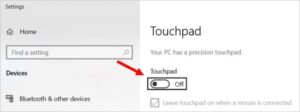
Press Tab in the Touchpad settings box to pick the Touchpad toggle switch.
To turn the toggle switch to the Off position, use the spacebar.
In Windows 7 and older, how to turn off the touchpad
utilising a keyboard and mouse
Input Control Panel by pressing the Windows key, followed by Enter.
Select Sound and Hardware.
Mouse may be found under Devices and Printers.
Select the TouchPad, ClickPad, Device Settings, or a similar-named tab in the Mouse Properties box.
The TouchPad should be able to be enabled and disabled. It could be a checkbox or a button. Click OK after selecting the Disable option.
To read our blog on “Dell is testing laptop with reverse wireless charging,” click here