Figuring out how to write the perfect Excel formula to achieve the desired result can be difficult, especially if you have a large amount of data on a spreadsheet and require an intricate formula that goes beyond calculating a sum – or if you’re simply Excel-formula-challenged.
Perfect Excel Formula
That has all changed, and ChatGPT has become the poster child for the phrase “work smarter, not harder.” ChatGPT and other AI chatbots can help you easily and quickly create formulas for your Excel spreadsheet for free, without requiring you to sign up for a specialized website like Excel FormulaBot.
The great thing about using artificial intelligence tools like ChatGPT or Bing Chat to create formulas for Microsoft Excel (and Google Sheets) is that you can request formulas that are as simple or as complex as you want – as long as your instructions are clear.
What you’ll need: To use ChatGPT to write an Excel formula, you’ll need access to either Microsoft Excel or Google Sheets, as these formulas can be used in both applications. To use ChatGPT, you must also have an OpenAI account.
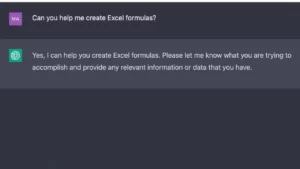
Keep in mind that, no matter how knowledgeable these AI chatbots are, they are not as well versed in nuances as a human, and they can make mistakes or misinterpret prompts.
1. Launch both ChatGPT and your spreadsheet
To access ChatGPT, open your Excel file or Sheets spreadsheet and navigate to chat.openai.com. If you haven’t logged in with your OpenAI account yet, now is the time to do so; you can also create an account at this time. After logging in, you’ll be taken to a ChatGPT conversation.
The spreadsheet below is an example of a fictitious inventory of devices for January 2023. Column A contains 45 products, each with an SKU number (column B), inventory amount (column C), quantity purchased in January (column D), price for each unit (column E), and the subtotal (column F, which already has a formula).

We’ll use ChatGPT to create a few simple formula examples, such as calculating sales tax (column G), seller’s commission (column H, not shown), total (column I, not shown), and the leftover quantity in inventory for the next month (column J, not shown).
2. Be very specific with ChatGPT
It’s now time to lay out the concept of what you want to achieve with ChatGPT and request the formula. To do so, you must explicitly tell the AI chatbot what you want the formula to do.
It’s critical that you’re crystal clear – mind-numbingly so – because any errors ChatGPT makes as a result of a misunderstanding can result in incorrect values in your table.
So channel your inner eleventh-grade student and ask your computer-lab teacher how to create a specific formula.
We’ll ask the AI chatbot to “write an Excel formula to calculate the sales tax of the monetary value in column F, at a 6% rate” if we want ChatGPT to create the rest of the formulas.

3. Paste the formula into Excel:
Copy the formula from ChatGPT and paste it into the Excel cell you want the results to appear in, making any necessary changes. Confirm the results to the best of your ability before populating the rest of your cells.
In the following example, I corrected the formula to reflect the correct cell, F3, that must be included in the sales tax calculation.
4. Complete the rest of your formulas:
I’ll finish adding the formulas I need to my spreadsheet by asking ChatGPT to “Create a formula to calculate 10% commission on the monetary total in cell F3.”
5. Finish the table:
Once I’ve entered my commission formula, I can proceed to the next two columns to calculate the total and the remaining inventory to complete the table.
6. Fill out the rest of your spreadsheet:
It’s time to apply your new formulas to the rest of your spreadsheet. Place your cursor in the lower-right corner of the formula cell, then click and drag your cursor over the rest of the cells you want the formula in. The same formatting will be used, as well as the formulas’ subsequent progression.
To read our blog on “How to save or copy Bing Chat replies,” click here