
The “Wordtune AI” iOS app can generate simple messages and emails, photo captions, LinkedIn or Twitter posts, cover letters, blog posts, and more.
Download Wordtune AI app
You’re emailing or chatting with someone on your iPhone and could use some assistance in generating the appropriate text. The Wordtune AI app from AI21 Labs is one tool that can help you. Wordtune, which is available as a third-party keyboard for iOS, can generate content based on your description.
Wordtune can write something from scratch or rewrite existing text that needs to be improved. Simple messages and emails, photo captions, LinkedIn or Twitter posts, cover letters, blog posts, and other content can be generated by the app.
The original version of Wordtune, released in December 2022, was designed to simply rewrite your sentences. However, with the most recent update, the app can generate the content you require right away.
You can enter text into the Wordtune keyboard by typing it in or speaking it into the iPhone’s built-in microphone. You can use it with any text-based app because it functions as a keyboard.
Wordtune is also compatible with the iPad, though it runs in iPhone compatibility mode and appears as a small window.
An Android version is being developed. In addition to using Wordtune as a keyboard, you can generate text directly from the mobile app and the Wordtune website.
The free version of the app only allows you to rewrite 10 times per day. A premium edition costs $25 per month or $120 per year and includes unlimited writing and rewriting, as well as the ability to rewrite entire paragraphs.
-
This is how Wordtune works
1. Download and install Wordtune
First, go to Apple’s App Store and download and install Wordtune on your iPhone. When you open the app, you can choose between the free and premium plans.
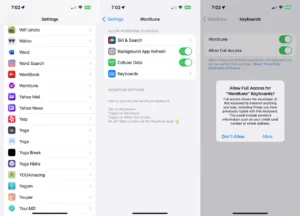
Then navigate to Settings > Wordtune > Keyboards. Turn on the Wordtune switch. To fully utilize the keyboard, you must also enable the Allow Full Access switch.
2. Rewrite text by typing it
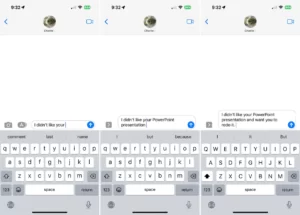
Launch a text-based app like Mail or Messages. Try writing something that Wordtune can rewrite first.
Type a few sentences in the appropriate field using your regular keyboard, but do not send the message. Alternatively, you can dictate the text by tapping the microphone icon in the lower right corner.
3. Switch to the Wordtune keyboard
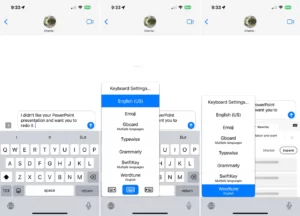
Long press the globe icon in the bottom left corner of the keyboard. Switch to the Wordtune keyboard.
4. Produce rewritten text
Select specific text within the message that you want rewritten, or leave nothing selected if you want all of the text you just wrote rewritten. Wordtune should rewrite the message automatically.
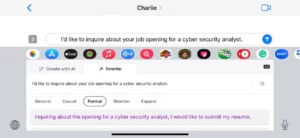
Otherwise, press the Rewrite button. Wordtune shows rewritten versions of the message in various tones. Tap each category to see the rewrites, and then select General, Casual, Formal, Shorten, or Expand.
5. Select and send a message that has been rewritten
If you like a rewrite, tap it to replace your current message. If you require additional editing, choose a specific word or phrase to be rewritten. When you’re finished, tap the arrow to send your rewritten message.
6. Produce new text
You can also request that Wordtune generate new text based on your description. Open a text-based app, such as Messages or Mail, for this.
Check that the Wordtune keyboard is turned on. Tap the Create button in the Create with AI window. Type a description of the text you want generated in the Wordtune app, or tap the microphone icon and speak it. Then press the up arrow.
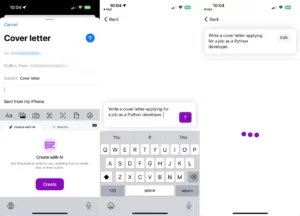
7. Go over responses
The first response is displayed. Swipe down the screen to see additional responses. Tap the response you want to use, and you’ll be taken back to your original app.
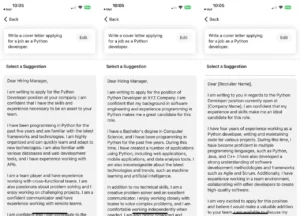
8. Insert and modify text
Tap the Insert button to insert the response into the text field or body. You can now change or add specific references to the text. When you’re finished, send your message.
9. Make use of the Wordtune app
You can generate new or rewritten text directly in Wordtune, in addition to using it as a keyboard. On your home screen, tap the app’s icon or say, “Hey, Siri, create with Wordtune.”
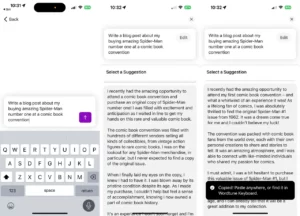
Enter a description of the content you want generated in the text field and press the up arrow. To see the responses, swipe down. If you like it, you can copy it and paste it into another app or file.
To read our blog on “Passwords can be cracked in minutes using this AI Tool,” click here