• Activities
    • Health
    • Education
    • Mobile
    • Sports
    • PSL
  • Economy
    • Auto Industry
    • Crypto Currency
    • Economy
    • Smart Devices
  • Tech
    • Startups
    • Social
    • Telecom
    • Technology
  • TechX World
Saturday, April 4, 2026
TechX Pakistan
Gitex Africa
No Result
View All Result
  • Home
  • Health
  • Education
  • Sports
    • Champions Trophy 2025
    • ICC World Cup
    • Asia Cup
    • PSL
    • Point Table
  • Technology
  • Real Estate
    • Property
  • Lawyer
    • Tax Calculator
    • FBR
  • About us
  • Contact
  • Home
  • Health
  • Education
  • Sports
    • Champions Trophy 2025
    • ICC World Cup
    • Asia Cup
    • PSL
    • Point Table
  • Technology
  • Real Estate
    • Property
  • Lawyer
    • Tax Calculator
    • FBR
  • About us
  • Contact
No Result
View All Result
TechX Pakistan
No Result
View All Result
  • Home
  • Health
  • Education
  • Sports
  • Technology
  • Real Estate
  • Lawyer
  • About us
  • Contact
Home Mobile

Split Screen on Android: How to Use Split Screen on OnePlus, Samsung, Vivo, OPPO, Realme and Xiaomi Android Mobile Phones?

by
December 29, 2021
in Mobile
Reading Time: 7 mins read
A A
0

This blog post has been originally posted in www.mysmartprice.com

The Split screen feature on Android devices is a brilliant productivity hack, however, it is mind-boggling to us that some people are still unaware of it. Google brought the Split-screen feature aka multi-window support with Android 7 Nougat. 

As the name suggests, it enables Android users to run and view two apps at the same time. The Android 7 feature is particularly helpful in large screen devices where you can multitask easily. For instance, you can play YouTube videos on one side of the screen and take notes on another. Split-screen functionality has become an integral tool for foldable devices as well. In this article, we will look at how you can toggle split-screen features on your Android device. 

Table of Contents

Toggle
  • Before you enable Split Screen on your Android device
  • How to Use Split Screen on OnePlus Devices
  • How to Use Split Screen on Oppo Devices
  • How to Use Split Screen on Samsung Devices
  • How to Use Split Screen on Realme Devices
  • How to Use Split Screen on Xiaomi Devices
  • How to use Split Screen on Vivo devices

Before you enable Split Screen on your Android device

Although the Split screen is a great Android feature, it is important to note that it consumes more battery than the average. This is because you will be running two apps simultaneously instead of one. Apart from that, it is entirely possible that the feature might not be available on your Android device. In that case, you can take help from any third-party apps available on the Google Play Store. Lastly, not all apps have multi-window support. While you can force them to run on split-screen, these apps will likely come up with performance issues. 

Also Read: How to Hide Apps in Samsung, Vivo, OPPO, Realme and Xiaomi Android Mobile Phones?

How to Use Split Screen on OnePlus Devices

Toggling the split-screen on OnePlus devices is very similar to how you would do the same on a Google Pixel device. Here’s how you can run split-screen on OnePlus devices – 

1. Swipe up from the long pill at the bottom to open the Recent apps menu. If you are using the three-button navigation button, press the square button. 
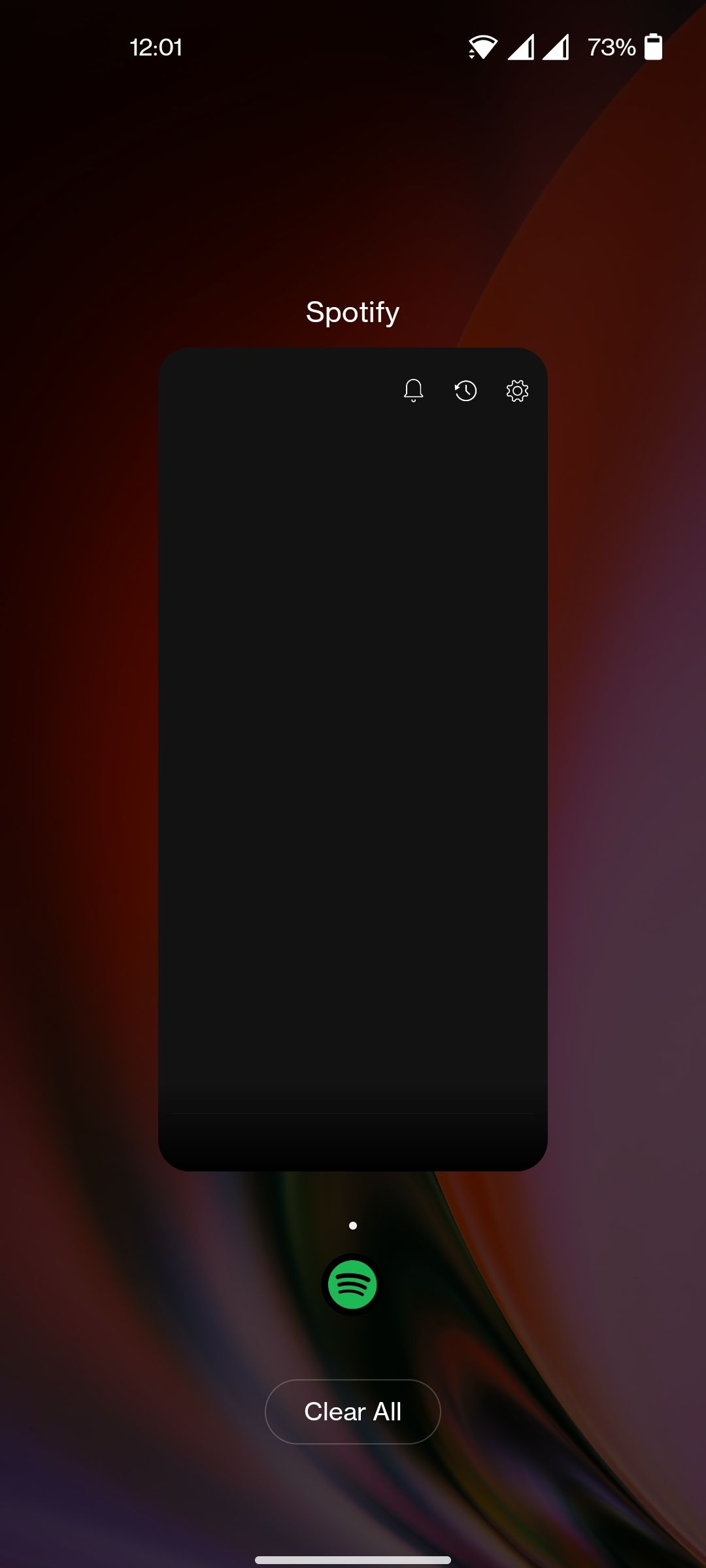
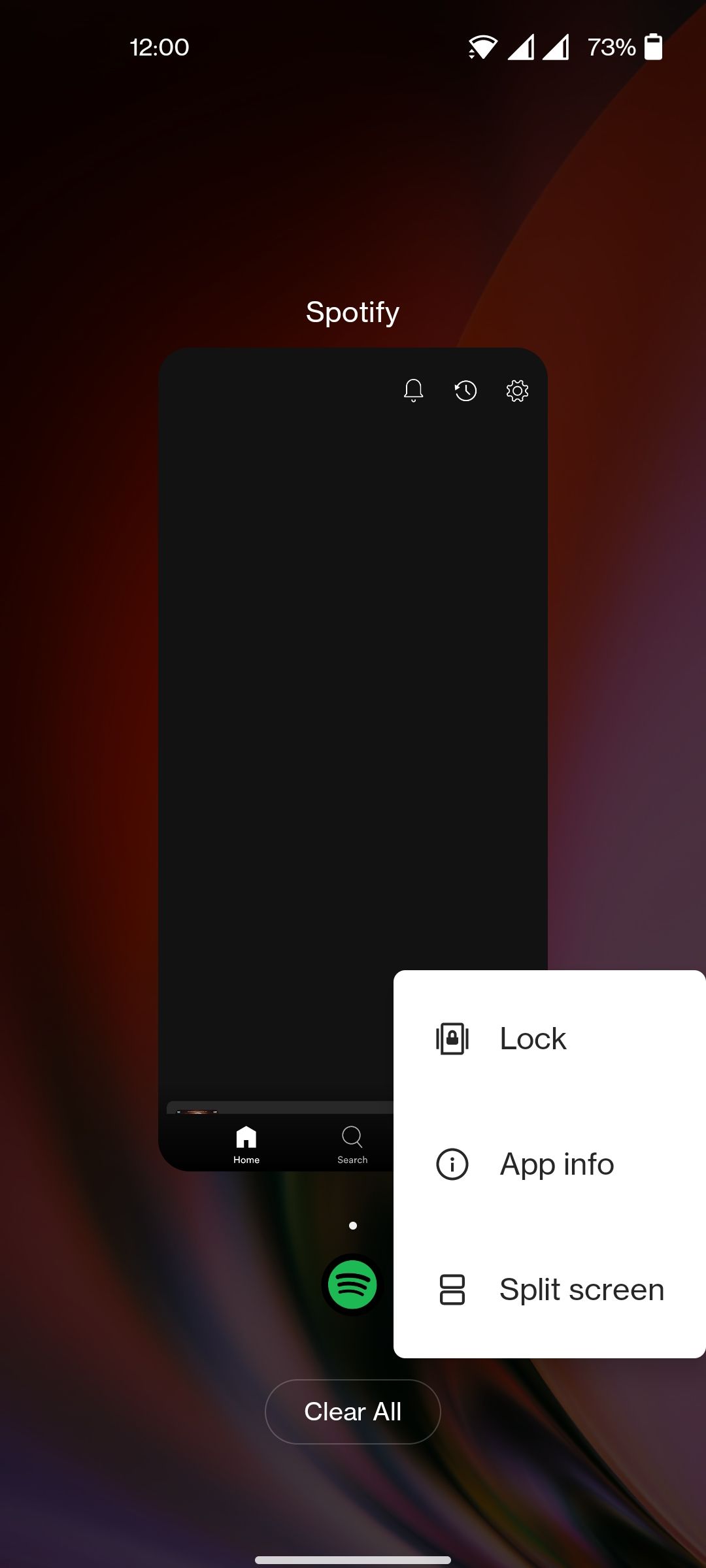
2. Long-press on the app 

3. Select Split screen in the pop-up menu. 
4. Open another app that you want to run on a split screen. 
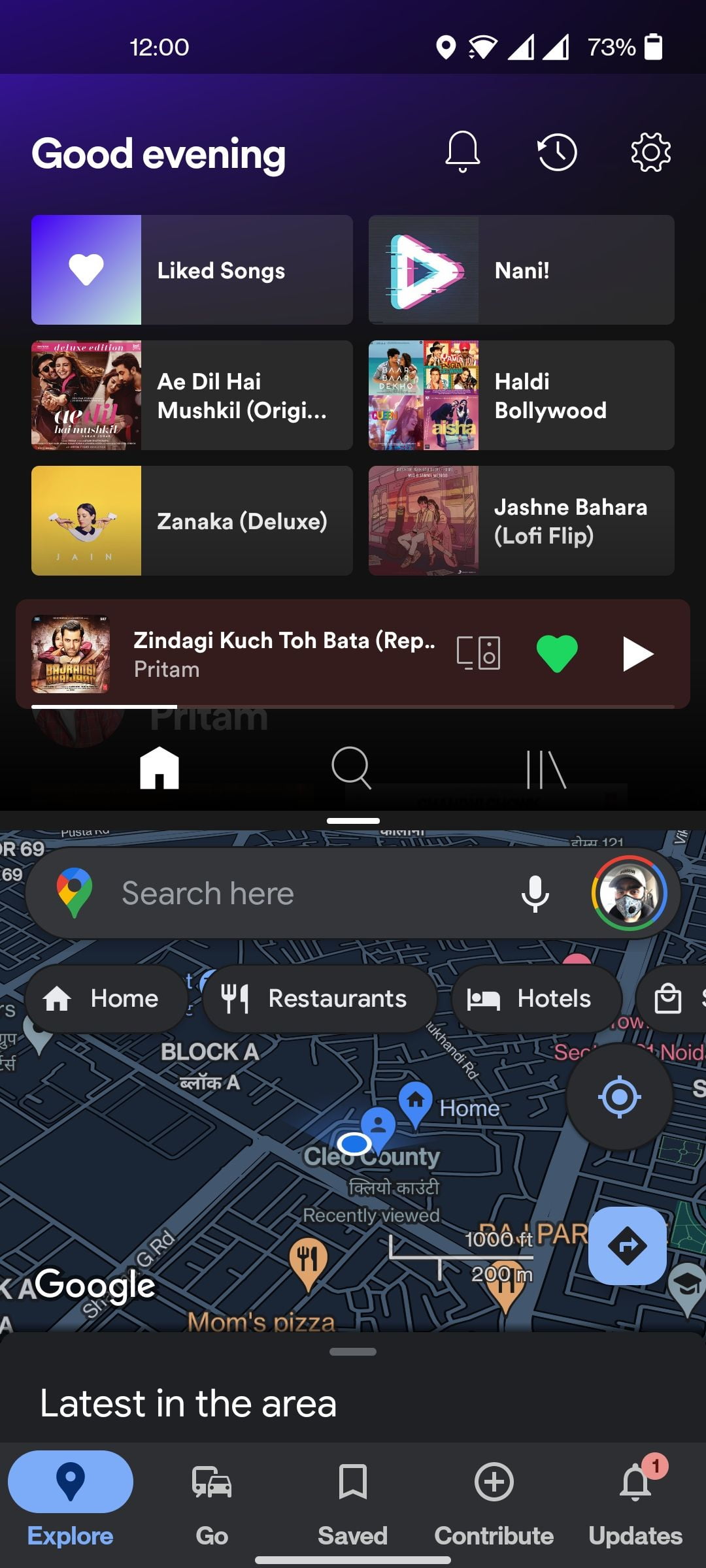
You can resize the apps and give them more space on the display by tapping and dragging the black bar separating the two apps. If you want to end the Split screen, simply drag the black bar to the top-end or the bottom-end. Depending on which side you drag the black bar will determine which app will take over the entire screen. 

How to Use Split Screen on Oppo Devices

In order to enable split screen on Oppo device, here is what you need to do –

1. Tap on the triple line icon at the bottom to open the Recent apps section. If you are using navigation gestures, swipe up from the bottom.

2. Tap on the double dot icon right beside the name of the app.

3. Select Split screen in the pop-up menu. 
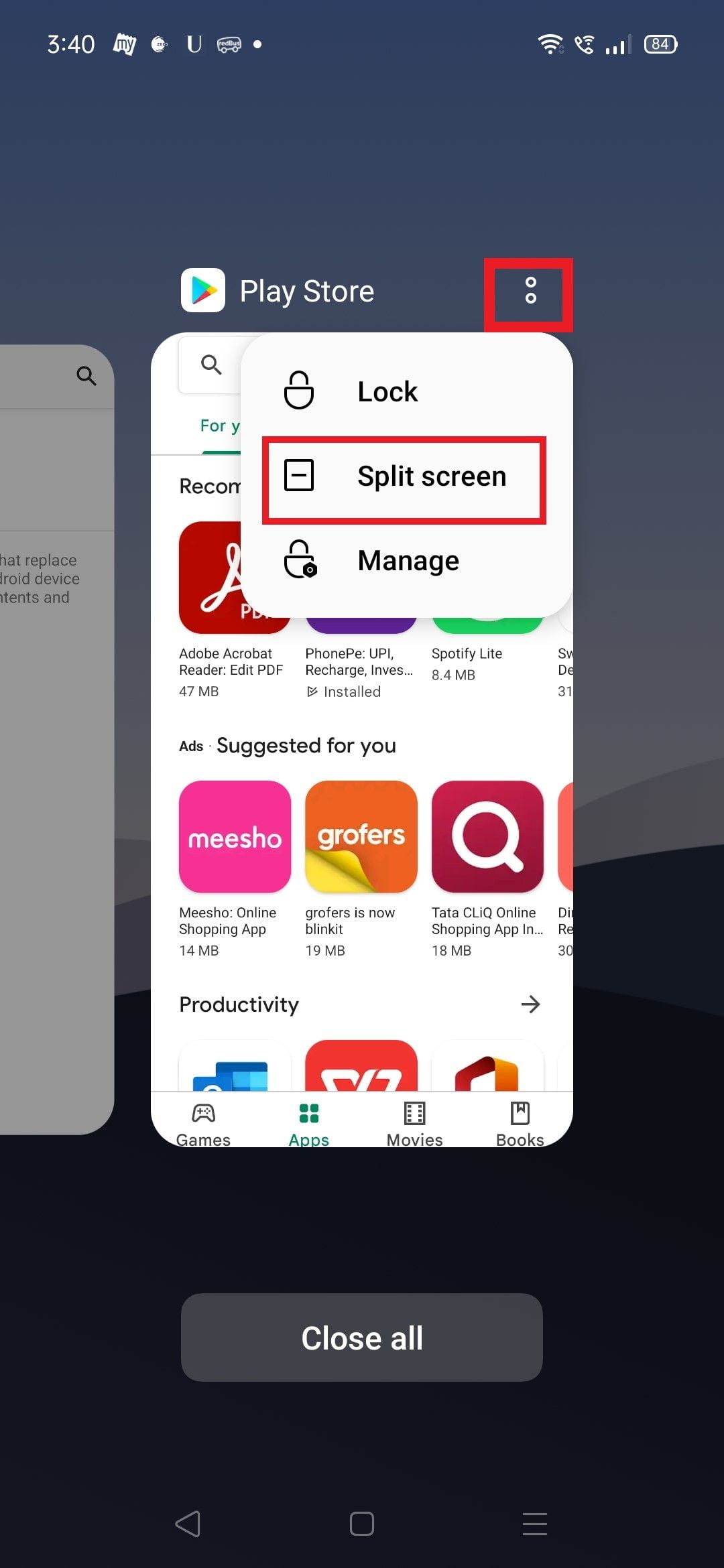
4. Open another app that you want to run in a split screen.

Also Read: How to Transfer Contacts from iPhone to Android Mobile Phone

How to Use Split Screen on Samsung Devices

To enable Split screen on Samsung’s One UI devices, here is what you need to do –

1. Swipe up from the bottom to open the Recent apps menu.

2. Choose the app that you want on the split screen and long-press on it.

3. Select the Split screen option.

4. Choose another app in the Recent apps menu that will appear in the split screen.

How to Use Split Screen on Realme Devices

Follow the steps below to enable split screen on Realme devices – 

1. Swipe up from the bottom pill to bring to the Recent Apps menu.

2. Tap on the double-dot icon right next to the name of the app.
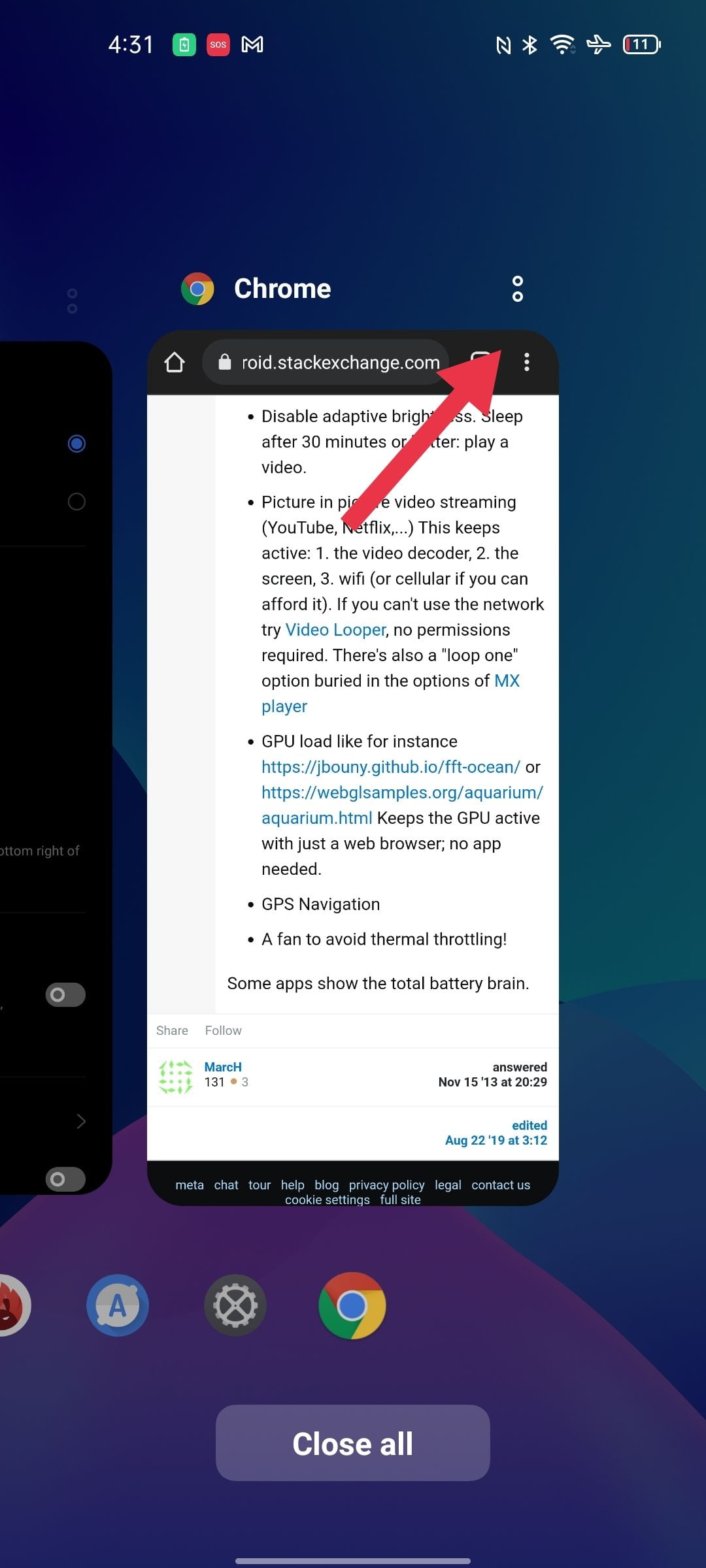
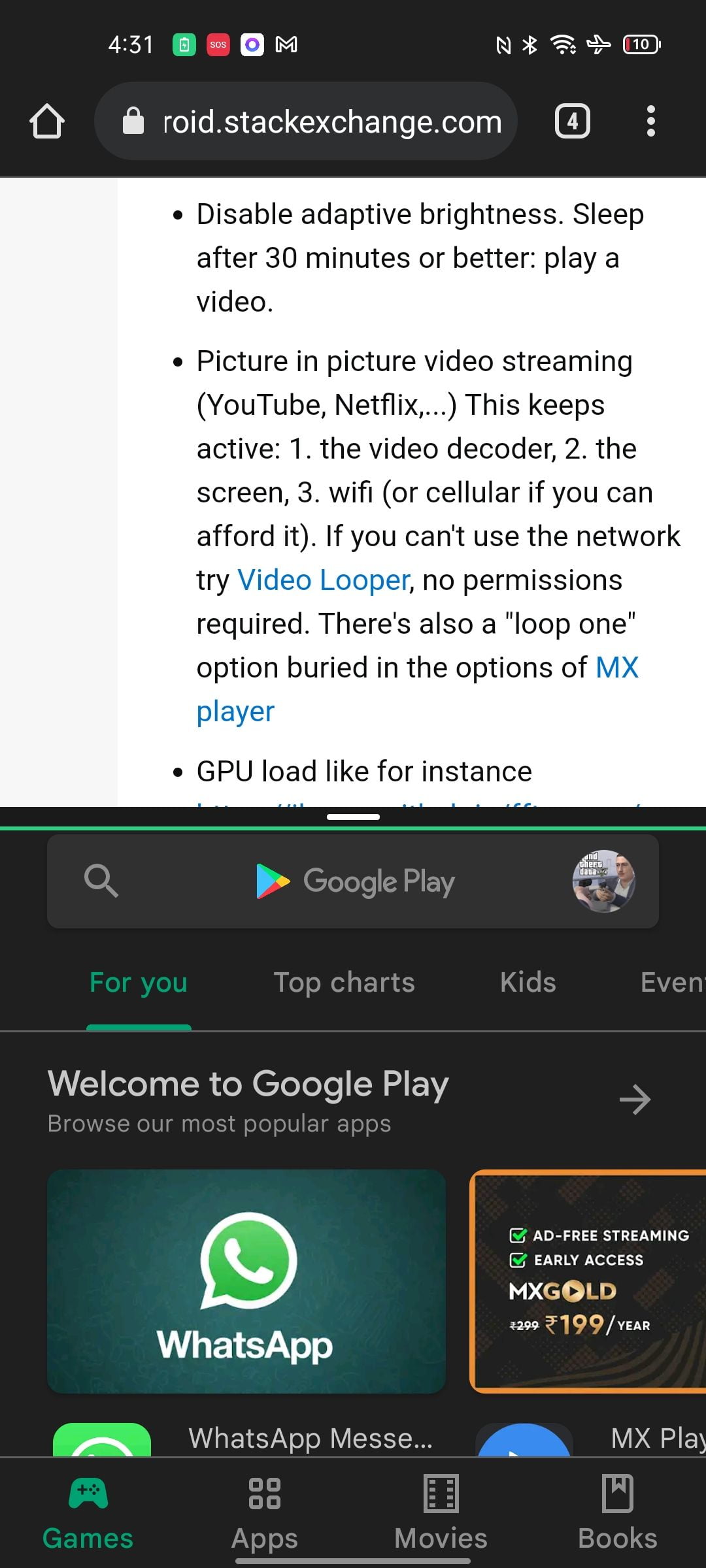
3. Select the Split Screen option.

4. Open the secondary app that you want on the split screen.
Also Read: How to Remove Google or Gmail Account from an Android Mobile Phone?

How to Use Split Screen on Xiaomi Devices

To enable split screen on Xiaomi device, here is what you need to do –

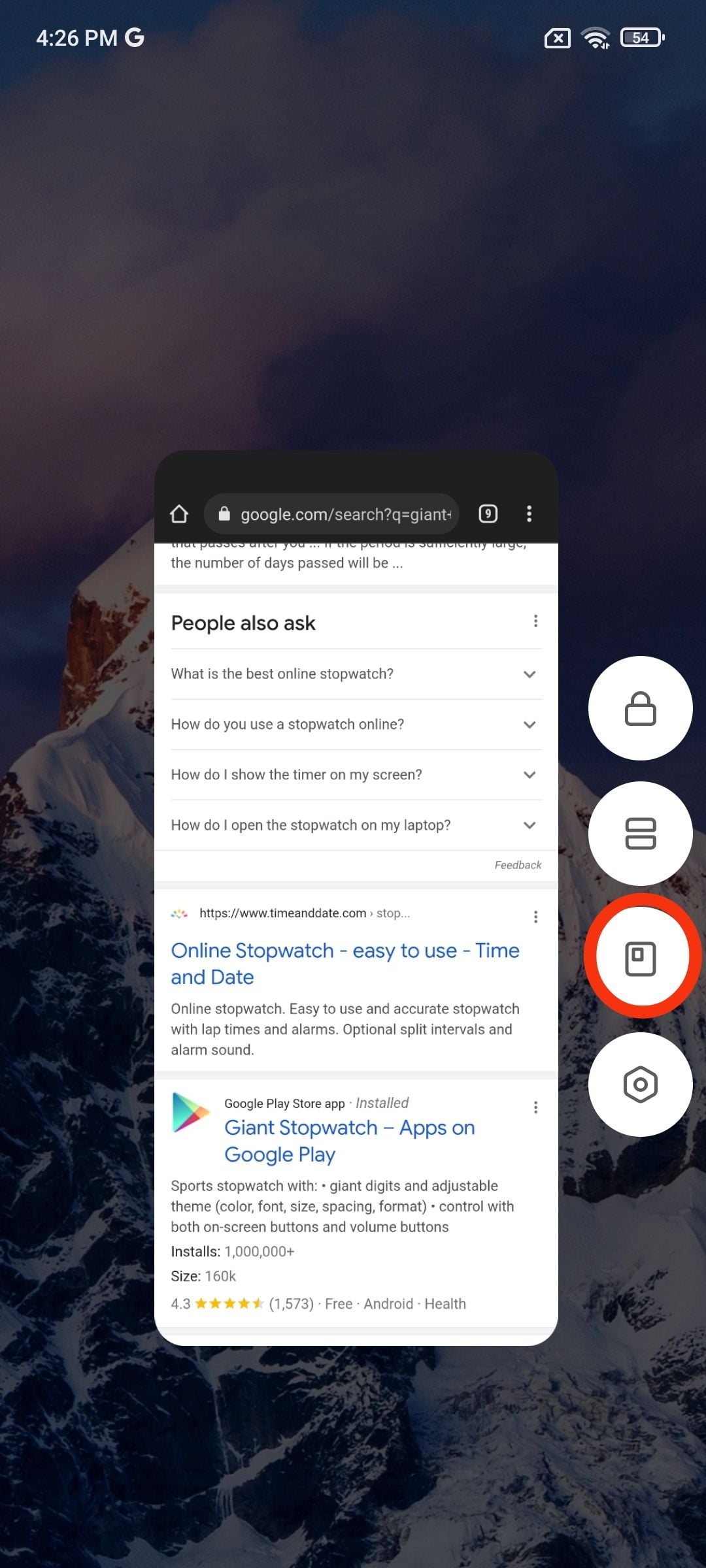
1. Swipe up from the bottom to open the Recent apps menu. 

2. Long press on the app. 

3. Select the split screen option.

4. Select another app from the recent menu. 

Right below the split screen button, there is also a floating window option that you can check out as well. As the name suggests, it turns an app into a floating window. You can resize the window to your liking and use other apps at the same time. 

Also Read: Android 12 Update Tracker: List of Samsung, OnePlus, Xiaomi Mi, Redmi, POCO, OPPO, Vivo, Realme Devices Eligibl

How to use Split Screen on Vivo devices

To enable split screen on Vivo devices, follow the steps below –

  1. Swipe up from the bottom to open the Recent apps menu.
  2. Tap on the icon next to the app’s name.
  3. Select the split screen option in the pop-up menu.
  4. Choose another app that you want to run in Split screen mode.

In Vivo phones, you can also toggle the Split screen in an instant by swiping down three fingers simultaneously on the screen. Once the primary app has been downsized, you can open another app of your liking.

The post Split Screen on Android: How to Use Split Screen on OnePlus, Samsung, Vivo, OPPO, Realme and Xiaomi Android Mobile Phones? appeared first on MySmartPrice.

source
This blog post has been originally posted in www.mysmartprice.com
Tags: Mobile PhoneMobile review
Share50Tweet32Share9Send

Related Posts

Apple Reportedly Testing 200MP Ultra High Resolution Camera for Future iPhones

by TechX Content Specialist
March 30, 2026
0
Apple 200MP

Apple is reportedly testing a 200‑megapixel camera sensor that could mark a significant upgrade for future iPhone models. According to...

Read moreDetails

Bank Alfalah Launches iPhone 17 Series on 0% Markup with Easy Monthly Installments

by TechX Content Specialist
February 25, 2026
0
Bank Alfalah

Bank Alfalah has introduced a new installment payment plan for the latest iPhone 17 series in Pakistan. Customers can purchase...

Read moreDetails

Follow Us

Promoted

GITEX Africa

GITEX Africa Morocco 2026 Africa Premier Technology & Startup Event

by TechX Content Specialist
March 17, 2026
0

GITEX Africa 2026 is one of the largest technology and startup events in Africa, scheduled to take place from April...

India AI Summit

India AI Summit An Analysis of Logistical Failures and Technical Hurdles

by TechX Content Specialist
February 23, 2026
0

As interest in Artificial Intelligence (AI) surges globally, South Asian nations are racing to establish themselves as regional tech hubs....

Pakistan to Host Indus AI Week 2026

Pakistan to Host Indus AI Week 2026

by TechX Editor
February 5, 2026
0

Join Indus AI Week 2026 in Islamabad from Feb 9-15, showcasing AI innovation, techathons, and global collaboration for Pakistan’s digital...

GITEX Africa 2026 Morocco: Africa Largest Tech and Startup Show

GITEX Africa 2026 Morocco: Africa Largest Tech and Startup Show

by TechX Content Specialist
February 5, 2026
0

GITEX Africa 2026 is returning with bigger ambition and wider global attention. The event is ready to place Morocco firmly...

Recent News

Sindh

How to Get the Rs. 2,000 Monthly Biker Subsidy in Sindh?

April 3, 2026
Islamabad

Mohsin Naqvi Announces Free Public Transport Across Islamabad for One Month

April 3, 2026
J-35

PAF to Receive J-35 Stealth Jets Early China Moves Delivery Timeline to Mid 2026

April 3, 2026
PSL 2026 Lahore Qalandars vs Multan Sultans Match 11 Preview

PSL 2026 Lahore Qalandars vs Multan Sultans Match 11 Preview

April 3, 2026
Fuel Subsidy

Sindh Government Announces Rs. 2,000 Monthly Fuel Subsidy for Motorcyclists

April 3, 2026
Free Public Transport

Punjab Government Launches Nationwide Free Public Transport Relief Package

April 3, 2026
Currently Playing

TechX Pakistan at GITEX Dubai 2024 | Innovation, AI & Global Tech Highlights

TechX Pakistan at GITEX Dubai 2024 | Innovation, AI & Global Tech Highlights

00:02:06

TechX Pakistan at LEAP 2025 | Saudi Arabia’s Mega Tech Conference Uncovered

00:03:37

Pakistan – The Mineral Marvel | Pakistan Pavilion at Future Minerals Forum 2025

00:03:09

TechX Pakistan at ITCN Asia Karachi 2024 | Innovation, Startups & Future Tech Highlights

00:02:22

TechX Pakistan at ITCN Asia Lahore 2024 | Official Media Partner Coverage

00:03:41

TechX x Doogee | GITEX 2024 Collaboration Featuring Iranian TikTok Star

00:01:09

Highlights from the World CIO 200 Summit - Pakistan Edition 2024 | TechX Pakistan

00:01:42

Leap 2024 | The most attended tech event in Saudi Arabia | covered by TechX Pakistan

00:03:46

Gitex Dubai 2023 Sneak Peeks by TechX Pakistan

00:01:47

Gitex Africa 2023: TechX Pakistan Honored To Cover The Event. @GITEXAFRICA

00:01:50

LEAP 2023, a Global Technology Event at Riyadh covered by TechX Pakistan

00:02:40

GITEX GLOBAL 2022 Presence of Pakistan, Connexion Lounge sponsored by @MinistryofITTelecomPakistan

00:01:40

ITCN Asia 2022 | 21st International IT and Telecom Show | Curtains Opened | TechX Pakistan

00:05:28

London Tech Week 2022 Highlights | #Pakistan #Software

00:02:58

#Zindigi Future Fest 2022 Curtains Opened | Day 01 Glimpses | Tour | TechX Pakistan

00:03:13

Wait is Over, ITCN Asia Pakistan Tech Fest 2022 is live now!

00:01:44

CXO Meetup Dubai by Tech Destination Pakistan - P@SHA x PSEX x MoITT

00:02:41

Workshop on IT Investment Opportunities by Tech Destination Pakistan

00:00:56

Pakistan Pavilion at GITEX Dubai 2021

00:01:39

#GITEX 2021 Curtains Opened | Day 01 Glimpses | 5G | Technology | Tour | TechX Pakistan

00:01:33

GITEX Technology Week 2020 by TechX Pakistan - Official Media Partner

00:01:27

Newsletter Subscription

Get daily/weekly tech updates, exclusive insights, and breaking news delivered directly to your inbox.

Loading

Since 2019, TechX Pakistan has been revolutionizing local tech and social blogging. We bring the latest news, interviews, and events on global and local advancements.

Join us in exploring IT startups, business insights, and social media trends. Celebrate and drive the tech evolution with us!

USEFUL LINKS

Home

About Us

Contact Us

Privacy Policy

Sponsored

Terms and Conditions

Site Map

CATEGORIES

Health

Crypto Currency

Technology

Sports

Finance

Curent Affairs

FOLLOW US

TECH INSIGHTS

Stay informed about the latest advancements in technology. Join our WhatsApp Group to receive curated news, insights, and updates straight to your inbox.

© 2025 TechX.pk - All right reserved 

Welcome Back!

Login to your account below

Forgotten Password?

Retrieve your password

Please enter your username or email address to reset your password.

Log In

Add New Playlist

No Result
View All Result
  • Home
  • Health
  • Education
  • Sports
    • Champions Trophy 2025
    • ICC World Cup
    • Asia Cup
    • PSL
    • Point Table
  • Technology
  • Real Estate
    • Property
  • Lawyer
    • Tax Calculator
    • FBR
  • About us
  • Contact

© 2019 - 2024 TechX Pakistan - All Rights Reserved

Go to mobile version