


You may not have realised it, but you don’t have to accept the keyboard defaults that come with your laptop out of the box: If you want different keys to trigger different actions than the default ones, you can customise them—which opens up a slew of new possibilities for productivity and getting things done. Here’s how to change the key bindings on Windows laptops, MacBooks, and Chromebooks.
Windows
Microsoft’s PowerToys is the best option for remapping keys on Windows, and you can get it here.
Aside from keyboard customizations, there are tools for keeping certain windows on top of others, dividing your desktop into custom zones, selecting colours from anywhere on your computer screen, and much more. When PowerToys launches after installation, all of these tools will be listed on the left.
For our purposes, you must select the Keyboard Manager option. You’ll be given a brief explanation of how it works, and if you choose Open Settings, you can begin making changes: To do so, turn on the Enable Keyboard Manager toggle switch and then click Remap a Key.
You must specify the physical key (the actual key on your keyboard) and the mapped key (what happens when the physical key is pressed), which can be accomplished by either selecting keys from a list or typing them directly.
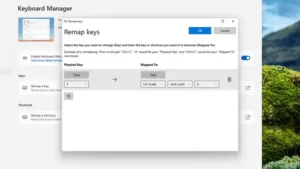
The utility supports everything from single key presses (make the E key display a B) to keyboard shortcuts (make Ctrl+V work like Ctrl+C instead) to function keys (make the F1 key work like the F2 key). For shortcuts, select Remap a shortcut from the main screen rather than Remap a key, but the process is the same. To remove a specific remap, click the trash can on the right side of either dialogue.
When it comes to remapping keys and creating your own custom keyboard shortcuts on Windows, you do have a few third-party options.
AutoHotKey is a more complex and powerful scripting programme that allows you to do almost anything with specific key presses, from launching applications to filling out forms.
There’s also WinHotKey, an older tool that still works with modern versions of Windows and allows you to quickly and easily set up custom keyboard shortcuts.
To read our blog on “How To prevent your laptop from overheating,” click here