OpenAI, the company behind ChatGPT, has a DALL-E 2 art platform that generates images from text descriptions in seconds. We’ll demonstrate how.
Is it true that life imitates art, or that art imitates life? Art can imitate almost anything with OpenAI’s DALL-E 2.
OpenAI’s DALL-E 2
The popular text-to-art platform allows users to create images using their words rather than art supplies.
The concept appears almost too simple (and far-fetched) to be true: Enter your concept into a search bar and you’re done! However, to get the most realistic and accurate representations of your desired searches, you’ll want to follow these tips and tricks.
Before you begin working with DALL-E 2, you should be aware of three housekeeping rules:
Because you conceptualized your artwork, you are automatically the accredited artist for the AI-generated product.
- If you choose to download the image, a colorful DALL-E 2 watermark will appear in the bottom right corner.
- The platform has limitations in terms of what you can create. DALL-E 2’s content policy, for example, prohibits harmful, deceptive, or political content.
- To discourage deep fakes, search terms for many public figures, such as Taylor Swift, are prohibited.
- While not all celebrities break the content policy, their faces are frequently distorted for safety reasons.
While not all celebrities break the content policy, their faces are frequently distorted for safety reasons.
DALL-E 2 is currently available for free, but there is a catch. After signing up for OpenAI via email, you’ll be given 50 free credits for your first month of use, followed by 15 free credits that will renew monthly.
Because a credit is only cashed after a generation is entered and completed, searches that violate the content policy and thus do not generate will not be deducted from the free credits.
You can see how many credits you have left each month by clicking on your profile icon in the upper right corner of the search interface, and you can also purchase more.
How to Make Custom Art with DALL-E 2
1. Sign up for an account on OpenAI’s DALL-E 2 website
Create or log into an account on the DALL-E 2 website before you begin generating images. This can be done on mobile or the web.
2. Begin creating
You can begin creating once you’ve logged in. The search bar is located at the top of the page. Other images created by DALL-E 2 artists can be found beneath it. If you’re looking for ideas, roll your mouse over each one to see what words the artists used to create the image.
3. Enter a search term into the search bar
When you’re ready to try your own idea, enter a phrase into the search bar.
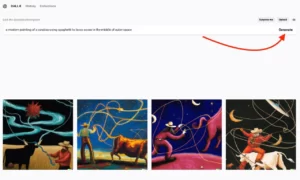
For instance, “a modern painting of a cowboy using spaghetti to lasso a cow in the middle of outer space.”
You may be thinking that the wording is unusually specific, and you are correct. Because the AI relies on your words, I’ve discovered that it’s best to be as specific as possible when describing the image. You can also specify an art style for the image by including it in the search term.
Also, if you want something in the foreground versus the background, be clear about the positioning of your subject(s).
4. Create and edit
When you’re satisfied with your search term, click “Generate,” and DALL-E 2 will generate four different images for you to preview.
If you’re not happy with the images, look for any common denominator among the four and modify your search phrase accordingly.
5. Save and distribute
After you’ve made your selection, the image will be displayed in its entirety. You can save the image to your DALL-E 2 gallery from here by clicking the save button in the top right corner.
You can save to your “Favorites” collection, which will appear in a window to the right of your DALL-E 2 workspace at all times, or to a specific collection you’ve started a la Pinterest.
To read our blog on “OpenAI offers ‘Incognito mode’ about ChatGPT,” click here