
• Activities
    • Health
    • Education
    • Mobile
    • Sports
    • PSL
  • Economy
    • Auto Industry
    • Crypto Currency
    • Economy
    • Smart Devices
  • Tech
    • Startups
    • Social
    • Telecom
    • Technology
  • TechX World
Wednesday, April 1, 2026
TechX Pakistan
Gitex Africa
No Result
View All Result
  • Home
  • Health
  • Education
  • Sports
    • Champions Trophy 2025
    • ICC World Cup
    • Asia Cup
    • PSL
    • Point Table
  • Technology
  • Real Estate
    • Property
  • Lawyer
    • Tax Calculator
    • FBR
  • About us
  • Contact
  • Home
  • Health
  • Education
  • Sports
    • Champions Trophy 2025
    • ICC World Cup
    • Asia Cup
    • PSL
    • Point Table
  • Technology
  • Real Estate
    • Property
  • Lawyer
    • Tax Calculator
    • FBR
  • About us
  • Contact
No Result
View All Result
TechX Pakistan
No Result
View All Result
  • Home
  • Health
  • Education
  • Sports
  • Technology
  • Real Estate
  • Lawyer
  • About us
  • Contact
Home How To

iMessages on Windows; how to send and receive them

TechX Editor by TechX Editor
May 30, 2023
in How To
Reading Time: 5 mins read
A A
0
imessages-on-windows-how-to-send-and-receive-them

By bringing iMessage to the PC, Microsoft is doing what Apple will not. Here’s what you should know.

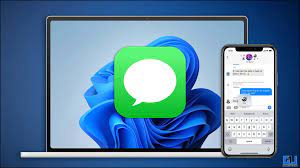
If you own an iPhone and a Windows PC, I have great news for you. Microsoft has officially begun rolling out iPhone compatibility to its Phone Link app, allowing you to send and receive iMessages from your PC.

Table of Contents

Toggle
    • iMessage to the PC
  • How to Send iMessages from an iPhone on a Computer

iMessage to the PC

You can also view all of your phone’s notifications and even make or receive calls. A brief testing period precedes the official rollout.

Android users can do much more than that, and have been able to send and receive messages for quite some time.

However, by extending the feature to iPhone users, you won’t have to stop what you’re doing on your computer every time you receive a message.

However, there are a few catches. To begin with, not everyone will have immediate access to the feature.

It is currently being rolled out, which means that some PCs will get it before others. Microsoft did not provide an ETA for when it will be available to everyone.

Because Microsoft is working with what Apple allows for when it comes to iMessage and alert access, keep in mind that you won’t be able to access your chat history, send or receive group messages, or view or send images and videos.

However, it is preferable to nothing. I’ll walk you through how to check for access, what’s required, how to pair your two devices, and, finally, how to send messages using your PC.

How to Send iMessages from an iPhone on a Computer

1. Install any available updates and install the Phone Link for iOS app

To get Microsoft to work its magic and display your iMessage conversations on your PC, download the Link to Windows app from the App Store and sign in with the same Microsoft account you use on your PC.

It’s also a good idea to double-check that your PC’s Phone Link app is up to date. Open the Microsoft Store app, then select Library > Get Updates, followed by Update All if any pending updates are found.

Finally, ensure that all Windows 11 system updates have been installed. To do so, launch the Settings app, navigate to Windows Update, and then click Check for updates.

Install any outstanding updates, reboot your computer if necessary, and then check for updates again. If you haven’t updated your PC in a while, there may be multiple rounds of updates.

imessages-on-windows-how-to-send-and-receive-them

2. Link your iPhone to your computer

After updating your PC and the necessary apps, you can connect your iPhone to your computer and begin using iMessage.

Launch both the Phone Link app on your computer and the Link to Windows app on your iPhone.

Your phone will have two options for the Phone Link app: Android or iPhone. Choose iPhone. (If the iPhone is marked as “coming soon,” your account does not yet have access to the feature. Check the app every few days to see if you’ve been granted access.)

Slide out the menu from the left side of the screen in the Link to Windows app on your iPhone and select Pair a new computer at the top of the screen.

Scan the QR code displayed in the Phone Link app on your computer with your phone’s camera. Follow the prompts on your iPhone and PC to finish pairing the two devices via Bluetooth.

After pairing is complete, open the Settings app on your iPhone, go to Bluetooth, and look for your PC’s name in the list of connected devices. Enable Show notifications by tapping the “i” icon.

imessages-on-windows-how-to-send-and-receive-them

3. Send and receive messages on your PC via your iPhone

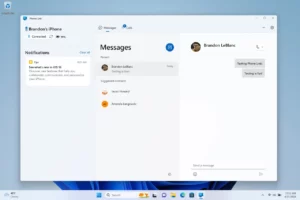
Once that’s done, launch the Phone Link app on your PC, and it’ll connect via Bluetooth to your iPhone, allowing you to receive notifications for new messages as well as alerts from your iPhone apps directly on your computer.

You won’t be able to see older conversations or messages; it will only show you what was sent or received while the app was open and a connection was active.

You will also be unable to send or receive images, and group messages will not function. You’ll still need to use your iPhone to complete those tasks.

Aside from those two major caveats, you can now send and receive messages – both iMessages and text messages – from your iPhone directly from your PC, which was previously not possible.
 

imessages-on-windows-how-to-send-and-receive-them

In a Tesla, this is similar to how sending and receiving messages on an iPhone works. There is no chat history, and group messages are not available, but it is better than nothing. And, to be honest, it’s past time for Microsoft to figure out how to make it happen.

To read our blog on “How to run Android 14 beta version easily on Nothing Phone 1,” click here

 

Share50Tweet32Share9Send
TechX Editor

TechX Editor

Hi! I'm the Editor at TechX Pakistan, where I specialize in managing and enhancing the SEO for our website. My role involves optimizing content to ensure maximum visibility and engagement, analyzing performance metrics to drive traffic, and staying up-to-date with the latest in search engine algorithms. My goal is to ensure that our website not only reaches but also resonates with our target audience, ensuring they find exactly what they need quickly and efficiently.

Related Posts

How to Get an Internship at the National Assembly of Pakistan

by TechX Editor
April 21, 2025
0
How to Apply for National Assembly Internship of Pakistan

The National Assembly of Pakistan has announced its Parliamentary Internship Program – Summer Batch 2025, offering a six-week hands-on experience for students and...

Read moreDetails

How to Check Ufone Remaining MBs in 2025

by TechX Editor
April 5, 2025
0
How to Check Ufone Remaining MBs in 2025

In 2025, staying connected is essential, and monitoring your data balance ensures uninterrupted internet access. Ufone offers multiple ways to...

Read moreDetails

Follow Us

Promoted

GITEX Africa

GITEX Africa Morocco 2026 Africa Premier Technology & Startup Event

by TechX Content Specialist
March 17, 2026
0

GITEX Africa 2026 is one of the largest technology and startup events in Africa, scheduled to take place from April...

India AI Summit

India AI Summit An Analysis of Logistical Failures and Technical Hurdles

by TechX Content Specialist
February 23, 2026
0

As interest in Artificial Intelligence (AI) surges globally, South Asian nations are racing to establish themselves as regional tech hubs....

Pakistan to Host Indus AI Week 2026

Pakistan to Host Indus AI Week 2026

by TechX Editor
February 5, 2026
0

Join Indus AI Week 2026 in Islamabad from Feb 9-15, showcasing AI innovation, techathons, and global collaboration for Pakistan’s digital...

GITEX Africa 2026 Morocco: Africa Largest Tech and Startup Show

GITEX Africa 2026 Morocco: Africa Largest Tech and Startup Show

by TechX Content Specialist
February 5, 2026
0

GITEX Africa 2026 is returning with bigger ambition and wider global attention. The event is ready to place Morocco firmly...

Recent News

Karachi Welfare Ambulances Penalised Under E‑Challan System

Karachi Welfare Ambulances Penalised Under E‑Challan System

March 31, 2026
PCB Warns Cricketers Over Unauthorized Social Media Activity

PCB Warns Cricketers Over Unauthorized Social Media Activity

March 31, 2026
Toll Plan

Iran Approves Strait of Hormuz Shipping Toll Plan Amid Regional Tensions

March 31, 2026
PSL 2026 Incident Afridi and Raza Involved in Hotel SOP Violation

PSL 2026 Incident Afridi and Raza Involved in Hotel SOP Violation

March 31, 2026
Qatar visa

Qatar Suspends On the Spot Entry Visa for Pakistani Citizens

March 31, 2026
death anniversary

Sindh Govt Declares 4 April Public Holiday for Zulfikar Ali Bhutto Death Anniversary

March 31, 2026
Currently Playing

TechX Pakistan at GITEX Dubai 2024 | Innovation, AI & Global Tech Highlights

TechX Pakistan at GITEX Dubai 2024 | Innovation, AI & Global Tech Highlights

00:02:06

TechX Pakistan at LEAP 2025 | Saudi Arabia’s Mega Tech Conference Uncovered

00:03:37

Pakistan – The Mineral Marvel | Pakistan Pavilion at Future Minerals Forum 2025

00:03:09

TechX Pakistan at ITCN Asia Karachi 2024 | Innovation, Startups & Future Tech Highlights

00:02:22

TechX Pakistan at ITCN Asia Lahore 2024 | Official Media Partner Coverage

00:03:41

TechX x Doogee | GITEX 2024 Collaboration Featuring Iranian TikTok Star

00:01:09

Highlights from the World CIO 200 Summit - Pakistan Edition 2024 | TechX Pakistan

00:01:42

Leap 2024 | The most attended tech event in Saudi Arabia | covered by TechX Pakistan

00:03:46

Gitex Dubai 2023 Sneak Peeks by TechX Pakistan

00:01:47

Gitex Africa 2023: TechX Pakistan Honored To Cover The Event. @GITEXAFRICA

00:01:50

LEAP 2023, a Global Technology Event at Riyadh covered by TechX Pakistan

00:02:40

GITEX GLOBAL 2022 Presence of Pakistan, Connexion Lounge sponsored by @MinistryofITTelecomPakistan

00:01:40

ITCN Asia 2022 | 21st International IT and Telecom Show | Curtains Opened | TechX Pakistan

00:05:28

London Tech Week 2022 Highlights | #Pakistan #Software

00:02:58

#Zindigi Future Fest 2022 Curtains Opened | Day 01 Glimpses | Tour | TechX Pakistan

00:03:13

Wait is Over, ITCN Asia Pakistan Tech Fest 2022 is live now!

00:01:44

CXO Meetup Dubai by Tech Destination Pakistan - P@SHA x PSEX x MoITT

00:02:41

Workshop on IT Investment Opportunities by Tech Destination Pakistan

00:00:56

Pakistan Pavilion at GITEX Dubai 2021

00:01:39

#GITEX 2021 Curtains Opened | Day 01 Glimpses | 5G | Technology | Tour | TechX Pakistan

00:01:33

GITEX Technology Week 2020 by TechX Pakistan - Official Media Partner

00:01:27

Newsletter Subscription

Get daily/weekly tech updates, exclusive insights, and breaking news delivered directly to your inbox.

Loading

Since 2019, TechX Pakistan has been revolutionizing local tech and social blogging. We bring the latest news, interviews, and events on global and local advancements.

Join us in exploring IT startups, business insights, and social media trends. Celebrate and drive the tech evolution with us!

USEFUL LINKS

Home

About Us

Contact Us

Privacy Policy

Sponsored

Terms and Conditions

Site Map

CATEGORIES

Health

Crypto Currency

Technology

Sports

Finance

Curent Affairs

FOLLOW US

TECH INSIGHTS

Stay informed about the latest advancements in technology. Join our WhatsApp Group to receive curated news, insights, and updates straight to your inbox.

© 2025 TechX.pk - All right reserved 

Welcome Back!

Login to your account below

Forgotten Password?

Retrieve your password

Please enter your username or email address to reset your password.

Log In

Add New Playlist

No Result
View All Result
  • Home
  • Health
  • Education
  • Sports
    • Champions Trophy 2025
    • ICC World Cup
    • Asia Cup
    • PSL
    • Point Table
  • Technology
  • Real Estate
    • Property
  • Lawyer
    • Tax Calculator
    • FBR
  • About us
  • Contact

© 2019 - 2024 TechX Pakistan - All Rights Reserved

Go to mobile version