

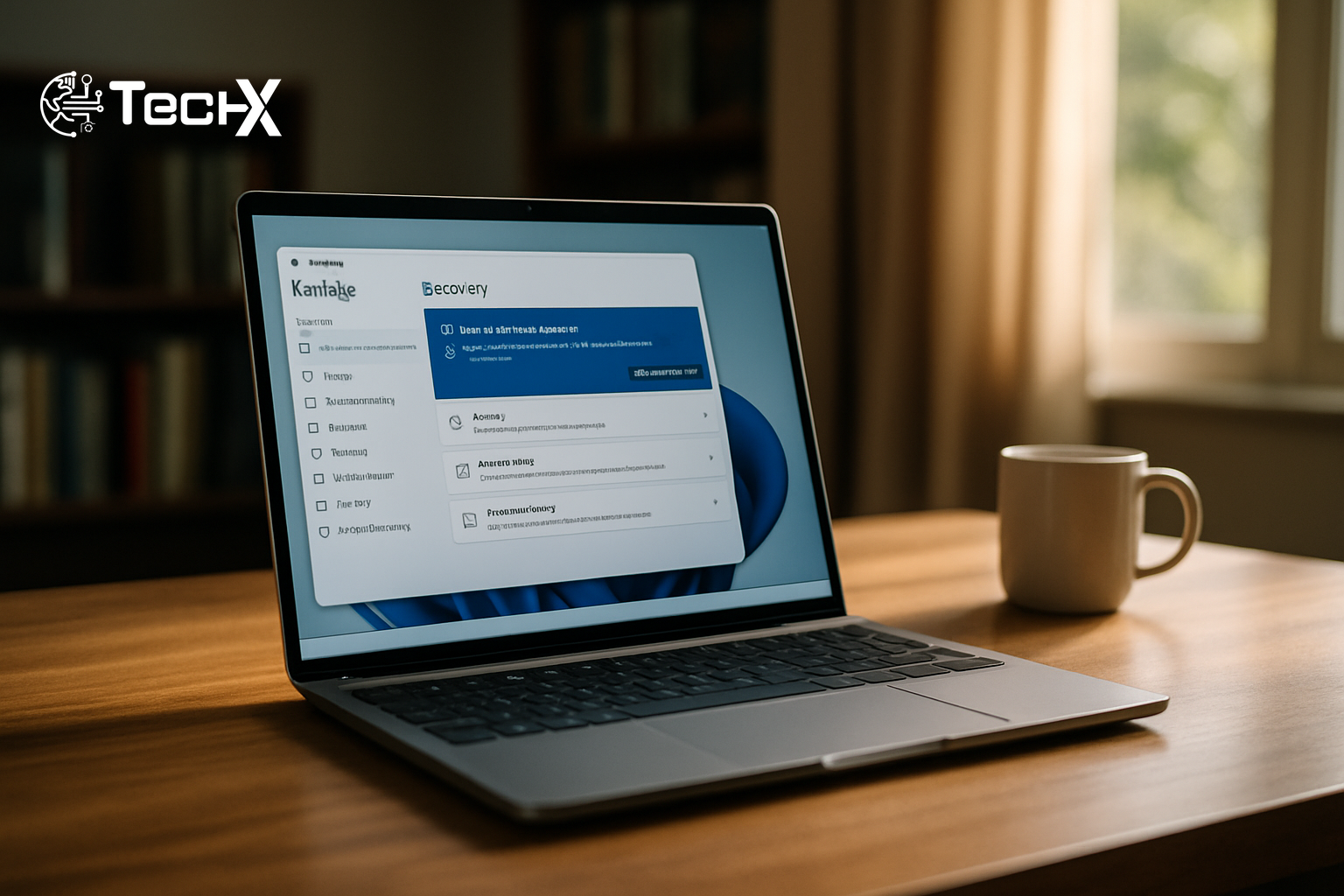
Windows 11 Point-in-Time Restore is the biggest new feature in Microsoft’s July 14, 2026 security update, and it changes how every Windows PC handles crashes, bad drivers, and broken installs. Along with a faster File Explorer, smarter update controls, and a new default for printing, this update is one of the most practical Patch Tuesdays in years. Here is a plain-English breakdown of every key change and what it means for Pakistan’s huge Windows user base.

What Is Windows 11 Point-in-Time Restore?
Most Windows users have lost work or spent hours fixing a broken PC after a bad update or a dodgy driver install. Microsoft’s answer is Windows 11 Point-in-Time Restore, a new built-in recovery tool that takes automatic snapshots of your entire system on a regular schedule.
How it works: The feature uses the Volume Shadow Copy Service (VSS) to save a full picture of your PC, including all apps, settings, and personal files. If something goes wrong, you can roll back to that saved state without reinstalling Windows from scratch.
- Snapshot frequency: By default, a new restore point is created every 24 hours in the background, without interrupting your work.
- How long snapshots are kept: Restore points are saved for up to 72 hours (3 days) before being deleted automatically. You can adjust this window in Settings.
- Storage used: The feature can use up to 50GB of disk space, but it only takes what it needs. If your snapshots total 8GB, the rest of that space is still free for you to use.
- Minimum drive size: Your PC needs at least 200GB of total storage for the feature to switch on automatically. On smaller drives, it is off by default but can be turned on manually.
The key difference from the old System Restore tool is that Point-in-Time Restore covers your personal files and installed apps too, not just system settings. It is a much more complete safety net.
You can manage it at Settings > System > Recovery and click “View or edit” next to Point-in-Time Restore. From there you can turn it on or off, change the snapshot schedule, and see your most recent restore points. For more detail, Microsoft’s official Windows support page has full guidance.
Who Gets It and When
Point-in-Time Restore comes enabled by default on Windows 11 Home and Pro editions for PCs with drives of 200GB or larger. Enterprise-managed PCs (joined to a company domain or managed via Intune) have it off by default until a later release.
The full rollout to all eligible Windows 11 users (versions 24H2 and 25H2) happens on July 14, 2026 as part of the standard monthly security update. You do not need to do anything. Just keep Windows Update turned on and the feature will arrive on its own.
For Pakistani users, this is particularly good news. Many PC users here rely on Windows for freelancing, small business work, and schoolwork. Losing hours of work to a bad update or a virus-related system issue is a real problem. Point-in-Time Restore gives a fast, free way to recover without calling a technician or wiping the drive.
Other Big Changes in the July 2026 Update
Faster File Explorer
After installing this update, File Explorer, the tool you use to browse your files and folders, will open noticeably faster. Microsoft added speed improvements under the hood. This is a small change but one you will feel every day.
Pause Windows Updates by Date
Instead of the old fixed “pause for 1 week” or “pause for 5 weeks” options, Windows Update now shows an interactive monthly calendar. You pick the exact date you want updates to resume, up to 35 days away. The system then shows a clear countdown and holds off until that date. This is a direct answer to years of complaints from users who got surprise reboots during work or gaming sessions.
New Default Printer Setup Using IPP
Starting with this update, Windows 11 will install new printers using the Internet Printing Protocol (IPP) by default, as long as the printer supports it. IPP is an open standard that works without brand-specific driver software, which means fewer compatibility headaches. If you prefer the old way, you can turn this off in Settings > Bluetooth and devices > Printers and scanners. The Printer Working Group maintains the IPP standard if you want to learn more about how it works.
Screen Tint for Eye Comfort
A new accessibility feature called Screen Tint lets you put a soft color overlay across your entire display. This is similar to a night mode but more customizable. You pick a color from a preset list and apply it to reduce eye strain. It is helpful for anyone who spends long hours in front of a screen, which describes a lot of Pakistani freelancers and students.
Quieter Widgets
The Widgets panel on the taskbar was often seen as noisy and distracting. This update makes it less intrusive, with changes to reduce the number of pop-ups and interruptions it causes.
Bluetooth Improvements
The update also fixes Bluetooth reliability issues. Wireless controllers, headsets, and other accessories should now pair and stay connected more reliably, even in environments with crowded wireless signals.
What Pakistani PC Users Should Do Now
Most users do not need to do anything special. Make sure your PC is set to receive Windows updates automatically. The July 14 rollout is gradual, so not every PC gets it on day one. Microsoft uses a phased approach, starting with newer hardware and expanding over time.
If your drive is smaller than 200GB, the restore feature will not turn on by itself. You can still enable it manually in Settings if you want the protection. Also check that you have enough free space, since snapshots can use up to 50GB. Keeping at least 60-70GB of free space on your system drive is a good habit anyway.
Pakistan has one of the largest Windows user bases in South Asia, with millions of PCs running Windows 11 for business, school, and freelance work. Features like Point-in-Time Restore mean less downtime and less money spent on technical support when something goes wrong.
Frequently Asked Questions
Does Windows 11 Point-in-Time Restore save my personal files?
Yes. Unlike the older System Restore tool, Point-in-Time Restore captures your entire OS volume, including personal files and installed apps, not just system settings. However, snapshots are only kept for 72 hours by default, so it is not a replacement for a full backup.
My PC has a 128GB SSD. Will I get this feature automatically?
No. The feature only turns on automatically on PCs with a drive of 200GB or larger. On a 128GB drive, it is switched off by default to protect your storage space. You can still turn it on manually in Settings if you want it.
Will the July 2026 update install by itself?
Yes, for most users. The security update rolls out automatically through Windows Update starting July 14, 2026. Microsoft uses a phased rollout, so it may take a few days to reach every PC. You can also check for updates manually in Settings > Windows Update.
Is this the same as System Restore that has been in Windows for years?
No, they are different tools. The old System Restore only saves Windows system files and registry settings. Point-in-Time Restore goes further and includes apps and personal files in its snapshots. It is also automatic and easier to manage, making it a proper upgrade over the older tool.