
The watermark is a metadata category that appears in many different forms on PDF documents. Mostly, it is used to show the ownership of a document or to restrict access to a particular document. However, there are some situations when a watermark is not required, mainly when the document is legally owned or when the document is to be presented on a professional level.
The real test is not just to remove the watermark, but to do so without affecting the quality of the original file. There are a lot of quick fixes that can produce blurred text, layout problems, and resolution issues. Fortunately, this article will show the best ways to ensure safe removal of the watermark from PDF files.
Why File Quality gets affected when Removing Watermarks
Before discussing how we can fix this issue. Let’s take a look at the common reasons for poor PDF file quality due to removing watermarks from documents:
- Raster-based software will convert the PDFs into images (i.e., lower resolution)
- Watermark remover applications tend to reduce size to save space on their servers
- Capturing screenshots usually results in a complete loss of formatting, text
- Using improper software will result in flattening layers permanently.
PDF is made up of lots of different parts, not merely a picture. The text, the image, the formatting, etc., all must be different. When a watermark is extracted improperly, a problem like damaged or corrupted text appears.
Always use a dedicated watermark removal tool for documents.
Types of Watermarks Found in PDFs
Each type of watermark is added differently, and removing it varies, too.
- TEXT WATERMARKS – are usually words such as “Confidential”, “Draft”, or “Sample” that have been added as a diagonal or at the top/bottom of the document.
- IMAGE WATERMARKS – consist of a company logo, a stamp, or a semi-opaque background image put behind the content of a PDF document.
- BACKGROUND WATERMARKS – have been embedded much deeper into the PDF structure and require specialized editing software to edit.
Therefore, by being aware of the kind of watermark. There are numerous ways that users can remove a watermark from their PDF. The user can choose from a multitude of techniques, as long as they do not try random techniques in an uncontrolled manner.
Common Mistakes to Avoid While Removing Watermarks
There are cases where users end up damaging their PDF files accidentally because of using shortcuts. The following are the things that you must avoid
- Avoid using screen captures of the pages of your document
- Do not convert a PDF file to an image and then again into a PDF.
- Avoid using free online tools to manipulate a document
- Do not edit a PDF with an image editor. Instead, use a PDF editor.
These methods can remove the watermark from a document. But they will generally degrade image quality by reducing resolution, distorting the typeface, or changing formatting.
The Right Way to Remove Watermark from PDF Without Quality Loss
Desktop PDF editing software that has direct access to the document’s layers rather than flattening them is the ideal tool to eliminate watermarks.
Benefits of Using An Offline PDF Editor:
- No file compression takes place when using an offline editor.
- You will not need an internet connection.
- You can easily manage the layout of your document.
- The original resolution and font style will stay intact.
One such tool is Systweak PDF Editor, which excels at performing all of these tasks.
How to Remove Watermark Using Systweak PDF Editor
Systweak PDF Editor is built to professionally manipulate PDF objects. So it is a great way to remove watermarks from the PDF. While the original PDF format is maintained, the quality of the images stays intact during the process.
The following are the steps to remove watermarks from a PDF using Systweak PDF Editor:
Step 1: Download and install Systweak PDF Editor. Open the program by clicking on “Open PDF” and locating the file you need to edit.
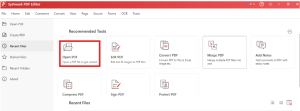
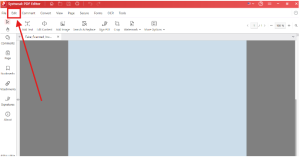
Step 2: Click the Edit option on the toolbar at the top of the window.
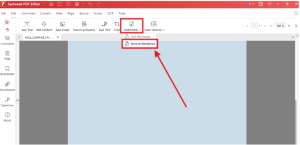
Step 3: Choose “Watermark” from the edit menu and then select “Remove Watermark.”
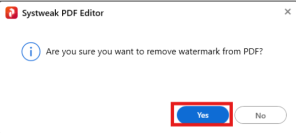
Step 4: Confirm the watermark is going to be removed by selecting “Yes.”
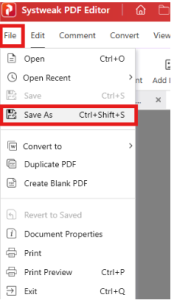
Step 5: Click on “File” then “Save As” to save the file with the changes.
Removing Watermarks from Scanned PDFs (Important Note)
Your PDF may have an Image layer for scanned watermarking. If the Watermark is located on the Image Layer of your PDF Document:
- You will need to run OCR to remove the image-based Watermark.
- Editing options are limited
- To remove the watermark, some manual cleaning operations in imagesis needed.
Systweak PDF Editor also offers an OCR option that may allow you more control over your PDF files, even scanned ones, through their ability to edit them.
Online PDF Watermark Removers: Are They Safe?
However, there are many risks involved in the use of an online tool, even though it is perhaps a good idea.
Disadvantages of Online Tools:
- Auto Compression
- File Size Limit
- Concerns about Data Privacy
- Lower Resolution of Output
- Limited Control of Editing
Using an Offline PDF Watermark Remover for Important or Private Documents is Always Safer.
How to Check If File Quality Is Preserved
Always verify that you are satisfied with your new PDF after removing the Watermark.
- Zoom into the final PDF to assess your success and examine the result at 300% to 400% to see the results clearly.
- Always check the typefaces used in your PDF after removing the Watermark and check to see if any of the typeface has changed as well.
- Remember to check the image quality you are providing.
- Lastly, ensure that the layout is aligned correctly.
Employing professional tools will enable you to maintain your document’s integrity, while using cheap tools will not.
Legal Reminder: When Is It Okay to Remove Watermarks?
Watermarks can be removed from documents only when you have:
- Document Ownership
- Licensed Version
- Written Permission
- Internal/Temporary Watermark
Keep in mind that removing a watermark from a copyrighted file could be viewed as a breach of the copyright agreement that might exist with that document.
Why Systweak PDF Editor Is a Reliable PDF Watermark Remover
Many users choose it for watermark removal due to:
- Offline capability (no risk to data)
- No unwanted compression
- Ability to remove text or picture watermark
- Preservation of original format
- Easily used by beginners
It was created specifically for users wanting clean PDFs and providing excellent quality.
Final Words
Getting rid of a watermark is not simply taking it off a document. Proper technique in removing one will result in no lasting harm to the item. If you do not use professional means to remove it from your printed copy, it may end up being damaged for good. On the other hand, if you use a trusted software package to accomplish your goal for watermark removal will provide the best quality result.
If you want to remove watermarks from PDF files without losing image quality, then using a professional piece of watermark removal software should alleviate your problem. Just think of getting software like Systweak PDF Editor, which is meant for this purpose. The Systweak PDF Editor will give you great control of your document. It will also provide you with more precision and confidence than a “quick fix.”
FAQs
Q: Can I Remove the Watermark With No Loss To My PDF File Quality?
A: Yes, as long as you are using a genuine PDF Offline Editor.
Q: Is Systweak PDF Editor a secure way to remove watermarks from the PDF?
A: Yes, using a reliable offline PDF editor means that the document will not be uploaded or compressed during the process of watermark removal.
Q: What Will Happen If I Attempt To Remove The PDF Watermark Using An Online Tool?
A: Most of the online tools store your PDFs on the web, so your quality will be diminished due to compression and degraded text/quality. And also, the risk of data breach is there if you are working with confidential documents.
Q: Can watermarks be removed from a scanned PDF?
A: Yes. You will possibly need to do OCR, but it will also depend on how well your scan was completed.