

Slack threads can grow to be rather long, making it difficult to find the entry you’re looking for. Fortunately, there is an alternative to the never-ending scroll.
Use of Slack’s Jump To Function
Slack is one of the most popular collaboration technologies available. Slack is more than just a communication tool; it also allows you to connect third-party extensions, post files, conduct video and audio chats, and much more. However, communication is at the heart of the platform.
I frequently have to refer back to certain entries within a number of various threads (whether they are DMs, conversations, or general debates within a Channel).
One method is to bookmark a certain post in a thread, which makes it very easy to find that entry. When I don’t have a bookmark and need to jump to a specific point in a thread, Slack comes in handy.
The feature I’m referring to is right there in plain sight, ready to assist you in finding exactly what you’re looking for. It may appear to be a simple line between dates, but it is much more than that.
Let me demonstrate how simple it is to pinpoint a specific moment in time on a thread so that you can simply revisit the specific part of a conversation that holds the key to whatever issue you’re working with.
What you’ll need: All you’ll need is a valid Slack account and a Workspace to get started. This functionality works in both the mobile and desktop versions. I’ll show you how to use the Slack desktop software on Pop!_OS Linux.
1. Log in to your Slack Workspace
The first step is to launch the Slack app and log into the Workspace you want to use.
2. Find the relevant thread
Next, find the thread you want to search. This can be a Direct Message, a topic, or a Channel. You can utilise the tool as long as there is a chat to search.
3. Navigate to a specified date
Once in the thread, look for a pill with a drop-down menu that not only serves as a separator between dates, but also allows you to jump to specific points in the thread.
When you click the drop-down menu, you’ll find some pre-programmed time periods (Today, Yesterday, Last Week, Last Month, and The Very Beginning).
There’s also a Jump to a Specific Date entry. Click the final entry in the list if you know the exact date you’re looking for.
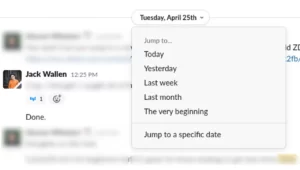

Locate and click the desired date in the resulting box, and Slack will transport you right to that point in the discussion.


If you’ve found the entry you’re looking for and know you’ll need to refer back to it, hover your cursor over it and click the Add to Saved Items icon (it looks like a bookmark). This way, you may easily find the entry by clicking Saved Items in the left navigation rather than searching for it.
To read our blog on “DocuSign has announced that Slack will be fully integrated with its end-to-end contract lifecycle,” click here