
Co-watching a video on YouTube during a Google Meet call is now possible. The only way to kick off a live sharing session is if the host has a YouTube Premium account. Attendees of the meeting won’t need a Premium account to see the video. With Google Meet, you can only play one video at a time.
Prerequisites:
One that runs Android
To begin a live sharing session on Google Meet, a Premium membership is necessary, but not used once it has begun. Attendees of the meeting don’t need a membership to see the video together.
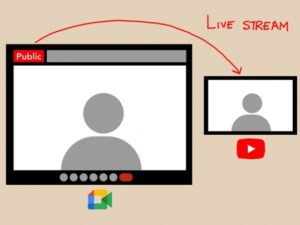

Here’s how to use Google Meet to view YouTube videos in real time with your friends.
- One can initiate a live presentation from within a Google Meet meeting
- Meeting controls can be accessed by tapping the screen after you’ve joined.
- Third, select More actions from the list of options at the bottom. Select “Activities” from the vertical three-dot menu.
- Tap YouTube under “Activities” on the main menu.
- Once you’re back in the Meet app’s Activities menu, select YouTube.
- To watch a video with a friend in real time, go looking for it.
- Click on the video number
- Select Start from the option that appears when you first begin a live sharing session

Conclusion
A green bar labelled “You are live sharing in Meet” will show at the bottom of the screen whenever live sharing is active. All of the meeting attendees should now be watching the YouTube video. In addition, the video can be paused, rewound, and fast-forwarded by everyone in the conference. It’s important to know that some videos, including those intended for minors and any paid videos, are restricted from being played during live broadcasts on YouTube.
To read our article about “How to create Google Meets polls in 4 easy steps” click here.