
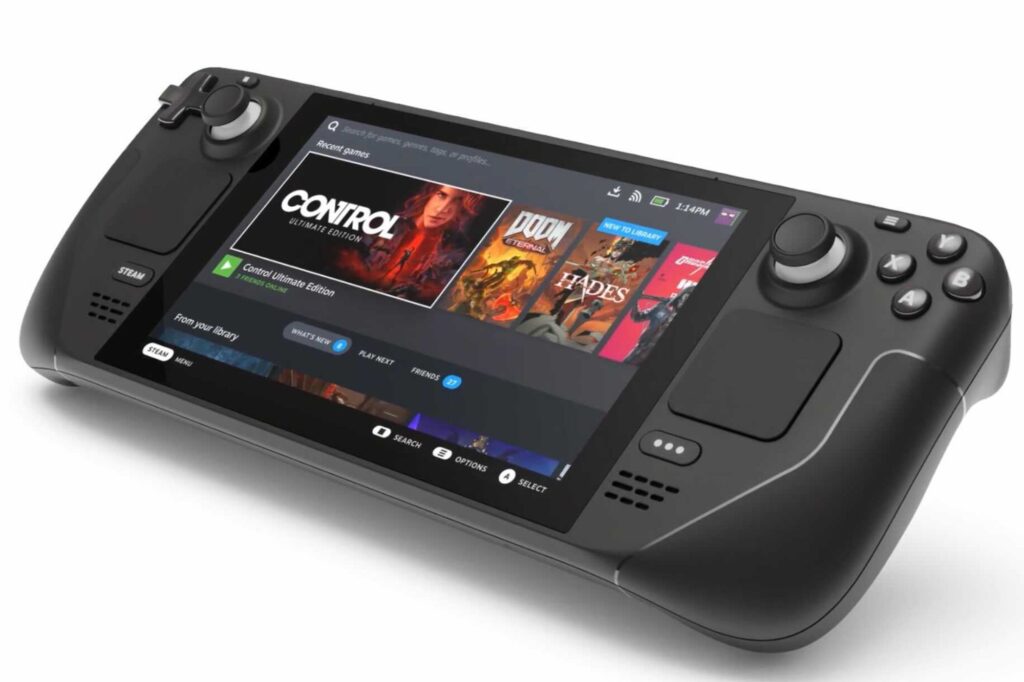
When you’ve exhausted all of the latest releases on your Steam Deck, you can turn your handheld console into an emulator and play a variety of classics from gaming’s past.
With the right software and a little know-how, you can use your Valve device to play games from the GameCube, the original PlayStation, the Xbox 360, and other older platforms.
When it comes to the emulation software that will run on the Steam Deck, you have a few options, but our current favourite is EmuDeck.
It’s comprehensive, simple to set up, and completely free to use. It does, however, rely on a suite of scripts to manage the emulation—if you’re looking for something more self-contained and app-like, try Batocera or RetroDeck.
How to Install EmuDeck
To get EmuDeck up and running, you must first prepare it.
A microSD card is the best option for storing your emulator games, and a U3 A2 card, such as those available from SanDisk’s Extreme line, will produce the best results.
We’ll also be using desktop mode inside the Steam Deck, so you can speed up the installation by connecting a keyboard and mouse (either over Bluetooth or via a USB hub).
This isn’t required, but it does make it easier to type on the device and move through the steps we’ll go over here.
On your console, press the Steam button, then select Power and Switch to Desktop.
This means you’re in a traditional Linux environment, so launch the Firefox browser that comes preinstalled and navigate to the EmuDeck website. Choose Download from the menu at the top, then Download installer, and save the file to your desktop.


Double-click the file you just downloaded to begin the installation process.
You then have a choice between Easy mode, which does the majority of the configuration work for you, and Custom mode, which allows you to specify which emulators to instal as well as various other options (such as aspect ratios and themes).
Choose whichever option best suits your time and patience: The quickest mode is Easy, but the questions in Custom mode aren’t difficult, and it does allow you to select the specific emulators you’re interested in (if you’ve never heard of any of them, some quick web research will help).
Whichever option you select, you’ll be asked to select an instal location, so select your microSD card.
If you become more familiar with EmuDeck, you can simply run the same installation file again to select different emulators or change any of the configuration settings, so don’t feel obligated to stick with your initial choices indefinitely. The installer will copy and instal all of the required files before you can begin loading games.
EmuDeck: How to Use It
We’re not going to get into the contentious and legally ambiguous issue of where you get your BIOS and ROM files in this guide, but you’ll need both: The BIOS files required to run the emulators (details here) and the ROM files for the actual games.
The simplest way to transfer these files from your computer to the Steam Deck is to use a flash drive or portable hard drive.
The microSD card cannot be used directly because Windows and macOS cannot read such cards after the Linux formatting used by the Steam Deck has been applied.
The Steam Deck, on the other hand, can read drives formatted by Windows and macOS, so you can plug a drive containing BIOS and ROM files into your handheld and copy the contents over.
You could also go wireless and use a solution like Windows file sharing.
On the microSD card, you’ll find the following folders: Specifically, “Primary/Emulation/bios/” for BIOS files and “Primary/Emulation/roms/” for ROMs, where “Primary” is the card’s name. Each emulator will have its own folder, so figuring out what goes where shouldn’t be too difficult.
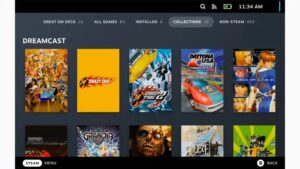
You must then ensure that your Steam Deck can see all of these fantastic emulators and games.
From the Linux desktop, run the EmuDeck installer again, then select Tools & stuff and SteamRomManager.
The following screen will display a list of emulators on the left: Toggle on the ones where you want their games to appear in the Steam Deck interface, or simply select EmulationStationDE to access all your emulators and games from the home screen menu.
The Steam ROM Manager will show you what it finds if you click Preview (top left), then Generate app list. Choose Save app list, and all of your selected emulators and games will be added to Steam within a few minutes.
You can then launch Steam in Linux and delete the entries for the games you don’t want direct access to (right-click then Manage and Remove selected non-Steam games from your library).
Return to Gaming Mode from the Linux desktop, and your games should be ready to play via the Library section of the standard Steam Deck interface: The ones you chose earlier will appear individually, but you can also access every ROM in your library that you’ve copied over with EmulationStation.
If something goes wrong, go back and retrace your steps—you’ll find a wealth of assistance and useful information on the EmuDeck Discord and the EmuDeck Wiki.
To read our blog on “How To add subtitles to any device’s audio and video live caption,” click here