
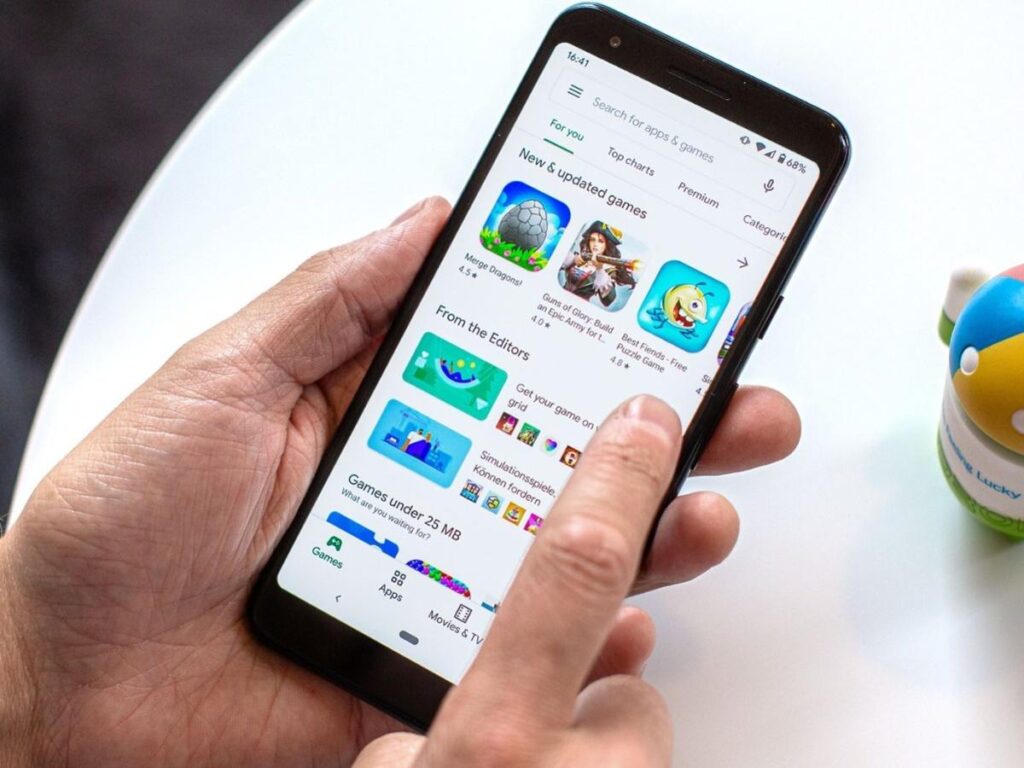
Google’s Play Store website has supported remote app installation for Android phones for some time now. However, it has been enhanced by the addition of remote software installation via Play Store for Android devices.
When you want to remotely install an app on another Android device, you no longer need to utilize a browser and sign in to your Google account. Learn how to remotely install apps on your other Android devices with this functionality.
Use Play Store to remotely install apps on other Android devices.
Using your Google account, you may remotely install apps and games from Play Store on any Android-enabled device. Any other Android device, such as a TV running Android or Chrome OS, or a watch running Wear OS, counts.
Make sure all of your desired devices have internet access and are signed into the same Google account as your primary device (the one from which installation will be initiated) before proceeding with this technique. When you’re ready to install an app or game on your other Android smartphone, follow these instructions:
- Launch the Google Play Store on your main device.
- Use the top search bar to look for the program or game you want to put on your device. Alternately, you can look for new programs or games to add to your device by clicking on the programs or Games tabs, respectively.
- One can launch a program by tapping on it.
- If you have more than one Android device linked to your Google account, you may switch between them by clicking the down arrow next to the Install button.
- If you wish to remotely install the software on a certain device, choose its checkbox. Multiple gadgets can be chosen simultaneously.
- Select the Install option and then hit it.
The app installation process on the selected device(s) will now begin on the Play Store. The status bar will update when progress is made. You can still get them via the Play Store, though, if that’s your preference.
There are many advantages to remote installation.
The ability to remotely install apps from the Play Store has many potential uses. Use it to quickly install an app on an Android smartphone you don’t have access to, for instance.
In a similar vein, it can come in handy when you want to load many programs onto your smartwatch but don’t want to deal with its limited interface. Or, when you need to install a number of them on your Android TV but would rather not deal with its clumsy on-screen keyboard.
Understanding the ins and outs of the Play Store will make managing apps on your Android smartphone a breeze, especially if you’re new to the Android ecosystem.
To read our article about “DALL-E 2; how to create AI-generated art” click here.