
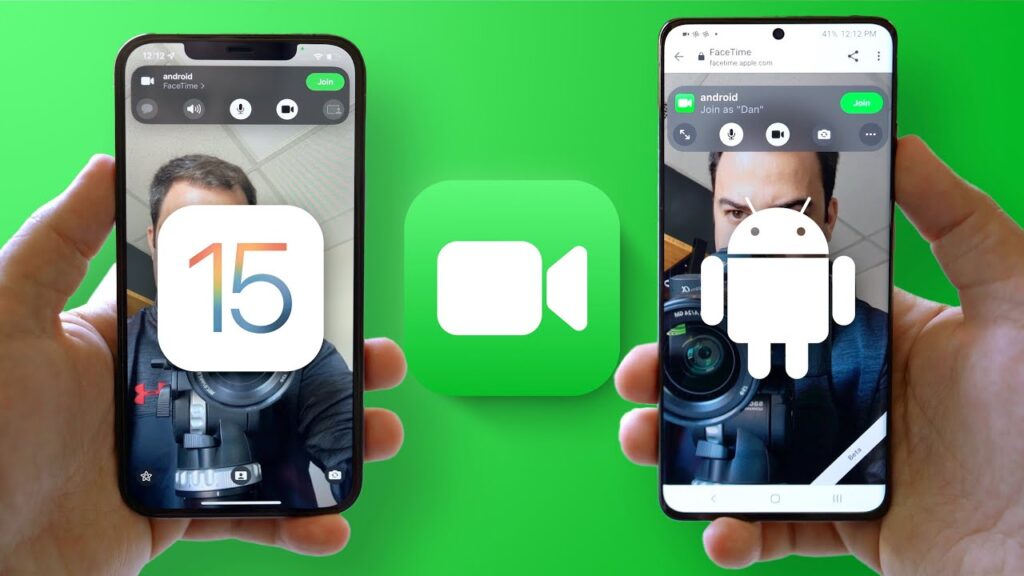
For far too long, Android users have been barred from accessing Apple’s thriving apps and services, such as iMessage and FaceTime.
While text messages from Android devices to iPhones will remain green for the foreseeable future, Apple has been a little more open about sharing its video-calling platform.
While Android users are still unable to initiate a FaceTime call or download the dedicated app, Apple users can now send an invitation link to their Android friends in order for them to join a video call, similar to a one-way Zoom link. Here’s a step-by-step guide on how to do it.
Make and Accept a FaceTime Call


1. Ensure that the iPhone user has the most recent software version installed
An Apple user must initiate the FaceTime call first. The following are the minimum device requirements:
- iOS 15 or later required for iPhone
- iPad requires iPadOS 15 or later.
- Mac: MacOS Monterey version 12 or later
2. Creating and sending a FaceTime link
As the sender/host: please Select the “Create Link” option in the top left corner of the FaceTime app on your iPhone, iPad, or Mac.
You’ll then be given a unique link to send to a contact, regardless of phone brand. You can also add a name to the link to make it more formal or personal.
As the receiver, once your Apple ally has sent you a FaceTime invitation, open your internet browser and click the link from your messages app.
Then, if you haven’t already, grant your browser access to your camera and microphone. After you click the link, you’ll be asked to enter your name before you can join the call. When you’re finished, press the “Continue” button.
3. Accepting and participating in the FaceTime call
As the sender/host: Once you send the link, Apple will automatically send a message to the receiver, inviting them to join your FaceTime call.
When your guest clicks on the invitation, you’ll be asked to accept or decline their entry request by clicking a checkmark or an X. Make sure to check the app frequently so you don’t leave your guest hanging.
As the receiver: Now it’s your turn, Android users. All you need to join a FaceTime call is a call link and a stable Wi-Fi or internet connection.
To join, simply click the link, followed by the green Join button. If everything goes well, your face will be displayed in a small box in the bottom right corner.
If the call’s host has not yet joined, the surrounding screen will be black with a “Waiting for others to join” notification at the top.
4. Making use of FaceTime
As the sender/host: You can now use FaceTime on your iPhone as you normally would. You can use a Memoji sticker or filter, take screenshots, and chat as much as you want within the app.
However, Android users have more limited functionality. More on that in a moment. When you’re finished with the call, simply hang up.
As the receiver, you won’t be able to use the full FaceTime experience from an Android device, in typical Apple fashion.
Unlike Apple users, you can’t use a Memoji sticker or filter to add some colour and pop to your call. You also can’t use the FaceTime screenshot button like you would on an iPhone to capture images.
However, you can take a screenshot manually. Moreover, unlike on an Apple device, the other user will not be notified that you took a photo. Use that knowledge wisely.
To read our blog on “Improved FaceTime on MacBook now. Continuity Camera feature is soon to be launched,” click here