
This blog post has been originally posted in www.mysmartprice.com
Google Forms is one of the most popular free services that make it possible for anyone to create simple forms using which they can get responses to questions, analyze data and more. Google Forms is completely free and there aren’t many requirements like those professional services that are paid and complex. Anyone with a Google account can create a form using this tool by Google.
However, just because the tool is free doesn’t necessarily mean everyone knows how to use it. In this article, we’ve put together a detailed guide on how to create Google Forms by following some simple steps. Moreover, you will also get to know different ways to customise it and how to check the responses in Google Forms. We’re adding guides for PC as well as mobile devices so that you can create a form easily from anywhere. So, without further ado, let’s get started.
Also Read: Google Meet: How to Record Google Meet Video Call with Audio as a Participant in Laptop and Phone
What are Google Forms?
Google Forms are simple forms that accept various kinds of response types. One can configure a field in any form to accept a single response corresponding to multiple options or a number of responses to a single question, or even get files uploaded as answers to the question. Let’s say if you are an employer and you need to check CVs from candidates, you can create a Google Form where candidates can submit their personal information like name, phone number, email ID, educational qualification etc. and also upload their CV. This tool by Google is very useful for those who want to conduct surveys, gather data for any projects and other similar activities. That’s why not just individuals or students, but even businesses use it quite often.
Also Read: Instagram: How to Change or Reset Instagram Password on Desktop and Mobile
How to Create Google Forms on PC?
To create a form on PC, you first need to open Google Forms on a web browser like Edge, Chrome or Firefox. Once you open the page, follow the steps below.
- Click the big ‘Plus Sign’.
- This will open a new untitled form.

The default landing page when you login with your Google account - Now name it by adding a title and if required, enter a description in the field below.

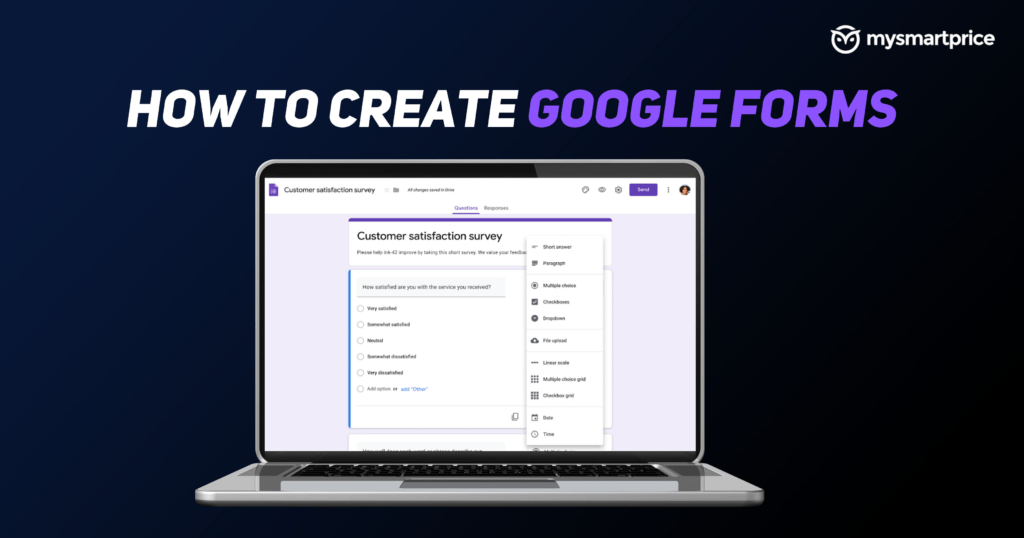
Screenshot of a sample form - An untitled question will be there already, rephrase it as per your needs and select the kind of answer that you will be accepting like multiple choices, short answers, file upload etc.
- Once you’re finished adding questions and types of responses, click on ‘Send’ at the top right corner, on the left to your profile image. You can create a link to share it publicly, email it or even embed it on web pages.
- Once you have done it, hit the ‘Escape’ button to go back to the form and click on the ‘Responses’ tab to view responses.


How to Create Google Forms via Google Drive?

If you’re already a Google Drive user, accessing Google Forms is easy as it is integrated with Drive.
- Visit Google Drive and if prompted, sign in with your Google Account.
- Click on the ‘New’ button, right under the Google Drive logo on the top left corner.
- On the dropdown menu, select Google Forms.
- Once you have done that, you can follow the steps mentioned earlier.
Also Read: Google Docs Shortcuts: 50 Best Google Docs Keyboard Shortcuts for Windows PC and macOS Laptop
How to Create Google Forms via Google Sheets?
If you’re working with numbers in a spreadsheet, you can insert a form there as well via Google Forms. To create a form in Google Sheets, follow these steps.

- Open any existing sheet you’re working on or create a new one by visiting Google Sheets and clicking on the ‘Plus Sign’ as mentioned earlier.
- Once the sheet is open, go to ‘Insert’ and select ‘Form’ to start creating a new form and linking it to the spreadsheet.
Also Read: Delete Google Account: How to Remove Google or Gmail Account from an Android Mobile Phone?
How to Create Google Forms on Mobile?


Unlike Google Docs and Google Sheets, Google Forms doesn’t come to Android phones as a standalone app. So, to create a form on mobile, you need to open Google Forms on a web browser like Chrome, Edge or Opera. Once you open the page, follow the steps below.
- A new untitled form will open immediately if you’re logged in with your Google account.
- If you’re not logged in, log in with your Google account.
- Now name it by adding a title and if required, enter a description in the field below.
- An untitled question will be there already, rephrase it as per your needs and select the kind of answer that you will be accepting like multiple choices, short answers, file upload etc.
- Once you’re finished with adding questions and types of responses, click on ‘Send’ at the top right corner, on the left to your profile image.
- Once you have done it, click the ‘Escape’ button to go back to the form.
Also Read: Turn off Google Assistant: How to Disable Google Assistant on Mobile, Chromebook, and Android TV
How to Edit Google Forms on PC?
Editing a form from PC is quite simple. You just need to visit Google Forms and you will see the already saved forms or forms that are saved but not complete.
- Click on any form
- Click on any of the fields, like Title, description, question, answer etc. and you will be able to edit them.
- You can change the text, change the type of response for answers or even add sections in the form or add a video.
- Once you’re done, click ‘Send’ and share it using a link, email or embed it on a webpage.
Within the form, you can add sections to explain the context of questions or even add videos from YouTube, from the vertical menu to the right side of the form.
How to Customise Google Forms?

Though it remains entirely free for everyone, Google lets users customize forms a bit. Users can change the theme, add a header, change the background and even change fonts. To start customizing a form, open any form from the list. Once the form is open, follow these steps.
- To the left of the ‘Send’ button, you will see a few options like ‘Redo’, ‘Undo‘, ‘Preview’, ‘Customize Theme’ and ‘Add-ons’. Click on the Customize Theme option.
- A narrow pane will slide from the right to the left on the screen.
- There you can see options to add a header image, change the theme and background colour and at last at the bottom a drop-down menu to change the font.
- Tweak these as per your liking and needs.
Also Read: Windows 11 Download: How To Install Windows 11 on Your Laptop or PC [Full-Guide]
How to Add File Upload Button in Google Forms?
The Upload Button lets people upload files in response to a question. You can simply edit the response type to enable this. Open any form and follow these steps.
- Select any answer field corresponding to a question.
- Instead of any other option like multiple-choice, short answer etc, select ‘File Upload’ from the menu.
- Once you do that, Google Forms will ask for your confirmation.
- Confirm it.
- Once you have done that, there will be an option to allow only specific file types which you can turn on, if needed.
- You can also adjust the maximum number of files and file size, as per your needs.
How to Check Responses in Google Forms?
You can check responses easily by following the steps below.
- Open Google Forms and click on a form for which you want to check responses.
- Once the form is open, click on the ‘Responses’ tab on top, next to the ‘Questions’ tab.
- It will show the data collected using pie charts. You can also click the tiny ‘Google Sheets’ icon to export data to a new spreadsheet or an existing spreadsheet.
- In the spreadsheet, you can see all the responses to the questions in a particular form.
So, this was a guide regarding Google Forms and how to access it from different devices, edit the forms and more. Go ahead and give it a try when you need to capture responses for a survey or project. Google Forms will do the job well. if you have any questions, drop them below to start a discussion.
The post Google Forms: How to Create Google Form on PC and Mobile, Customize it and Check Responses appeared first on MySmartPrice.
source
This blog post has been originally posted in www.mysmartprice.com